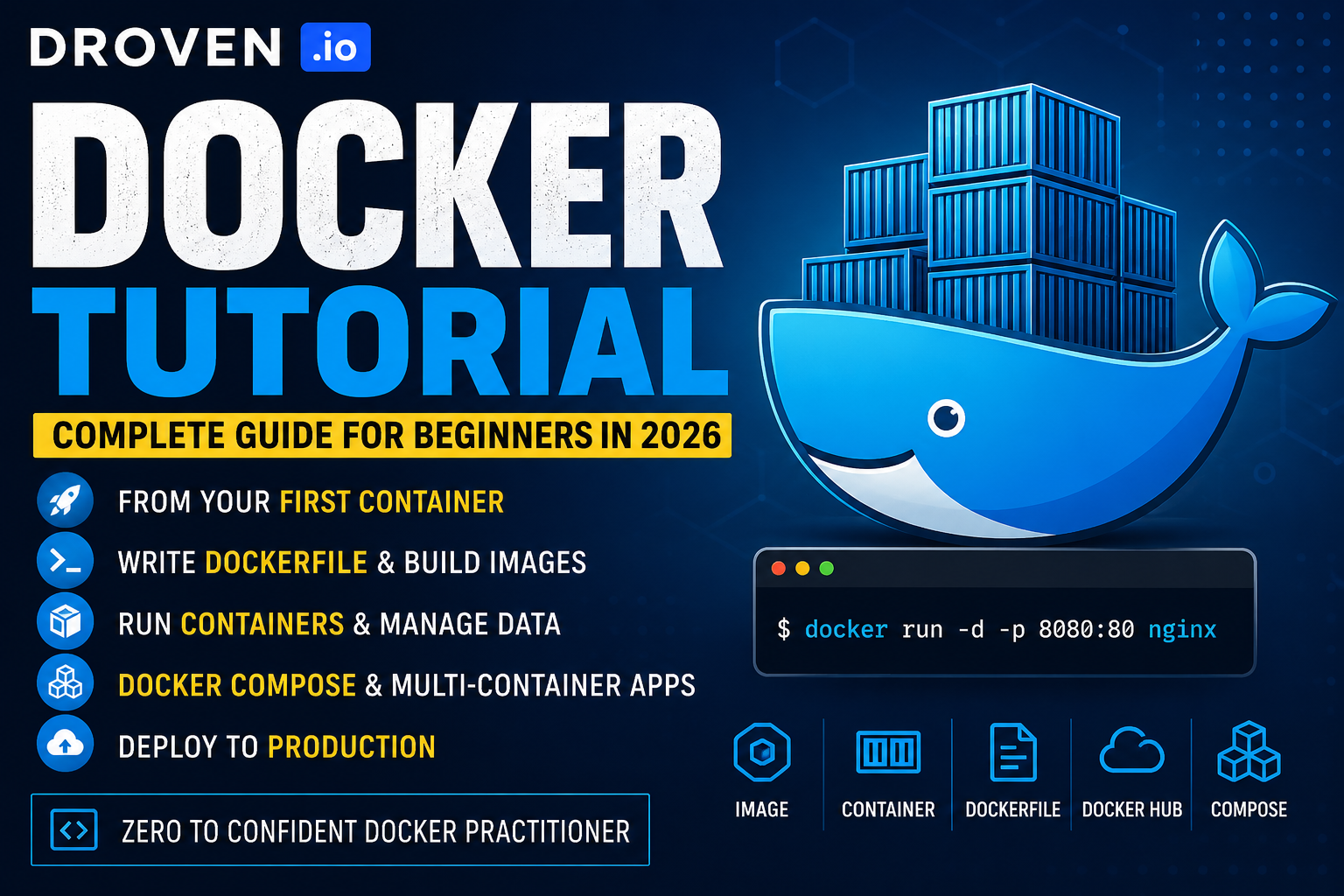
Droven io Docker Tutorial is the most searched Docker learning resource for DevOps beginners in 2026—and this complete guide covers everything from your first container to production deployment. Docker is the single most important tool in modern DevOps engineering — and mastering it is the essential first step toward building a job-ready DevOps skill set in 2026. Whether you are a complete beginner who has never worked with containers before or a developer who understands the theory but has never put it into practice, this complete Droven.io Docker tutorial will walk you through everything you need to know. From understanding what Docker is and why it matters to writing your first Dockerfile, building images, running containers, and deploying real applications—this guide covers the full journey from zero to confident Docker practitioner.
Before diving in, here is a quick overview of the core Docker concepts this tutorial covers:
| Docker Concept | What It Does |
|---|---|
| Image | Blueprint for your container |
| Container | Running instance of an image |
| Dockerfile | Instructions to build an image |
| Docker Hub | Cloud registry for storing images |
| Docker Compose | Tool for multi-container apps |
| Volume | Persistent storage for containers |
What Is Docker and Why Does It Matter in 2026?
Before diving into the practical steps of this Droven.io Docker tutorial, it is important to understand what Docker actually is and why it has become so fundamental to modern software development and DevOps engineering.
Docker is an open-source containerization platform that allows developers to package applications and all their dependencies—libraries, configuration files, runtime environments, and everything else the application needs to run—into a single, lightweight, portable unit called a container.
The problem Docker solves is one of the most frustrating in software development: the classic “it works on my machine” issue. Before containers existed, developers would write code that worked perfectly on their laptop but failed when deployed to a server because the server had a different operating system, different library versions, or different configuration settings. Docker eliminates this problem completely by packaging everything the application needs inside the container itself.
As a result, Docker containers run identically whether they are on a developer’s laptop, a staging server, a production cloud environment, or a colleague’s computer across the world. This consistency is transformative for teams and is one of the main reasons why Docker has become a core requirement in virtually every DevOps job posting in 2026.
Furthermore, containers are significantly more lightweight and efficient than traditional virtual machines. A virtual machine runs an entire operating system for every application. A Docker container, by contrast, shares the host operating system’s kernel while keeping the application environment completely isolated. This means you can run dozens of containers on a single server that would struggle to run more than a handful of virtual machines.
Droven io Docker Tutorial: Core Concepts You Must Understand First
Before writing any code, the Droven.io Docker Tutorial emphasizes the importance of understanding the core concepts that everything else builds on. These are the building blocks of every Docker workflow.
Docker Images
A Docker image is a read-only template that contains everything needed to run an application — the operating system base layer, application code, dependencies, environment variables, and startup commands. Think of an image as a blueprint or recipe.
Images are built from instructions defined in a file called a Dockerfile. Once built, an image can be stored locally or pushed to a container registry like Docker Hub for sharing and reuse.
Docker Containers
A container is a running instance of a Docker image. When you run an image, Docker creates a container — a live, isolated process with its own filesystem, networking, and resource allocation. You can run multiple containers from the same image simultaneously, and each will operate completely independently.
Docker Hub
Docker Hub is the world’s largest public container registry—a cloud-based library where developers store and share Docker images. It contains thousands of official images for popular software, including Nginx, MySQL, PostgreSQL, Redis, Node.js, Python, and many more. Rather than building everything from scratch, you can pull pre-built base images from Docker Hub and layer your application on top.
Dockerfile
A Dockerfile is a plain text file containing a sequence of instructions that Docker uses to build an image. Each instruction adds a layer to the image—defining the base operating system, installing dependencies, copying application files, and specifying the command to run when a container starts.
Docker Compose
Docker Compose is a tool for defining and running multi-container applications. Instead of manually starting multiple containers with separate commands, you define all your services, networks, and volumes in a single YAML file and start everything with one command.
Droven.io Docker Tutorial: Installing Docker in 2026
Getting Docker installed is the first practical step in this Droven.io Docker tutorial. The installation process is straightforward across all major operating systems.
Installing Docker on Windows
Windows users should download and install Docker Desktop for Windows from the official Docker website at docker.com. Docker Desktop provides a graphical interface, the Docker CLI, Docker Compose, and everything else you need in a single installer. It requires Windows 10 or later with WSL 2 (Windows Subsystem for Linux) enabled.
Installation steps:
- Download Docker Desktop installer from docker.com
- Run the installer and follow the on-screen instructions
- Enable WSL 2 integration when prompted
- Restart your computer after installation
- Open Docker Desktop and wait for it to start
- Open a terminal and run
docker --versionto confirm installation
Installing Docker on Mac
Mac users also use Docker Desktop, available from docker.com. There are separate versions for Intel Macs and Apple Silicon (M1/M2/M3/M4) Macs — make sure to download the correct version for your hardware.
Installing Docker on Linux (Ubuntu)
On Ubuntu Linux, Docker is installed directly via the command line:
sudo apt-get update
sudo apt-get install docker-ce docker-ce-cli containerd.io
sudo systemctl start docker
sudo systemctl enable docker
sudo usermod -aG docker $USER
After installation, log out and back in to apply the group permission, then verify with docker --version.
Droven io Docker Tutorial: Your First Docker Commands
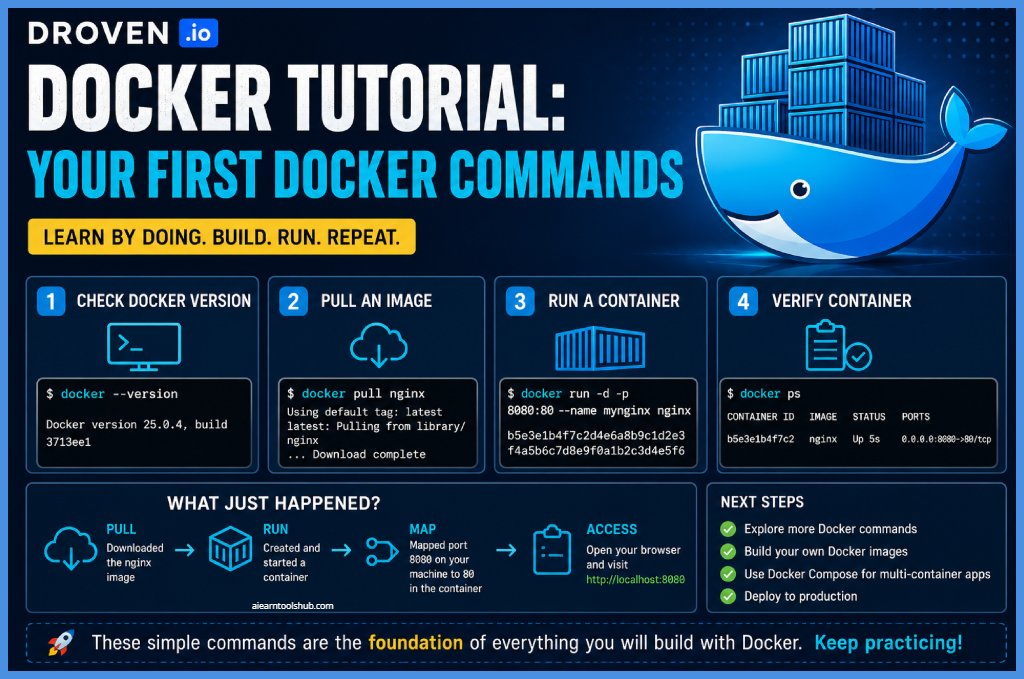
Once Docker is installed, the best way to start learning is by running your first containers. The Droven.io Docker Tutorial begins with the simplest possible commands and builds from there.
Running Your First Container
Open your terminal and run:
docker run hello-world
This command tells Docker to find an image called “hello-world,” pull it from Docker Hub if it is not already on your system, create a container from it, and run it. If everything is working correctly, you will see a friendly confirmation message. Congratulations — you have just run your first Docker container.
Running an Interactive Container
Next, try running a full Ubuntu Linux environment inside a container:
docker run -it ubuntu bash
The -it flag combines two options — -i keeps the session interactive and -t allocates a terminal. The bash at the end tells Docker to run the bash shell inside the container. You are now inside a fully isolated Ubuntu environment. Type exit to leave the container.
Running a Web Server
Now try something more practical — running an Nginx web server:
docker run -d -p 8080:80 nginx
The -d flag runs the container in detached mode (in the background). The -p 8080:80 flag maps port 8080 on your computer to port 80 inside the container. Open your browser and navigate to http://localhost:8080 it—you will see the Nginx welcome page running inside a Docker container.
Essential Docker Commands
Here are the most important Docker commands every beginner needs to know:
docker ps                    # List running containers
docker ps -a                 # List all containers including stopped ones
docker images                # List all locally stored images
docker pull nginx            # Pull an image from Docker Hub
docker stop container_id     # Stop a running container
docker rm container_id       # Remove a stopped container
docker rmi image_id          # Remove an image
docker logs container_id     # View container logs
docker exec -it container_id bash  # Open a shell inside a running container
Droven.io Docker Tutorial: Writing Your First Dockerfile
Writing Dockerfiles is where the Droven.io Docker Tutorial moves from running pre-built images to building your own. A Dockerfile defines exactly how your custom application image is constructed.
Here is a practical example — a Dockerfile for a simple Python Flask web application:
# Use an official Python base image
FROM python:3.11-slim

# Set the working directory inside the container
WORKDIR /app

# Copy the requirements file into the container
COPY requirements.txt .

# Install Python dependencies
RUN pip install --no-cache-dir -r requirements.txt

# Copy the rest of the application code
COPY . .

# Expose port 5000 for the Flask application
EXPOSE 5000

# Define the command to run when the container starts
CMD ["python", "app.py"]
Understanding each instruction:
FROM — every Dockerfile starts with a FROM instruction that specifies the base image. Here we use Python 3.11 with the slim variant for a smaller image size.
WORKDIR — sets the working directory inside the container. All subsequent commands run from this directory.
COPY — copies files from your local machine into the container filesystem.
RUN — executes a command during the image build process. Here we install Python packages.
EXPOSE—documents that the application listens on. It does not actually publish the port—that happens at runtime with -p.
CMD — specifies the default command to run when a container starts from this image.
Building and Running Your Custom Image
Once your Dockerfile is ready, build your image with:
docker build -t my-flask-app .
The -t flag tags the image with the name “my-flask-app.” The . tells Docker to look for the Dockerfile in the current directory. After building, run your custom image:
docker run -d -p 5000:5000 my-flask-app
Droven.io Docker Tutorial: Docker Compose for Multi-Container Applications
Real applications rarely consist of a single container. A typical web application might need a web server, a database, a caching layer, and a message queue — all running together and communicating with each other. This is where Docker Compose becomes essential in the Droven.io Docker Tutorial.
Here is a practical Docker Compose example for a Python Flask application with a PostgreSQL database and Redis cache:
version: '3.8'

services:
  web:
    build: .
    ports:
      - "5000:5000"
    environment:
      - DATABASE_URL=postgresql://user:password@db:5432/myapp
      - REDIS_URL=redis://redis:6379
    depends_on:
      - db
      - redis

  db:
    image: postgres:15
    environment:
      - POSTGRES_DB=myapp
      - POSTGRES_USER=user
      - POSTGRES_PASSWORD=password
    volumes:
      - postgres_data:/var/lib/postgresql/data

  redis:
    image: redis:7-alpine
    ports:
      - "6379:6379"

volumes:
  postgres_data:
Save this as docker-compose.yml in your project directory, then start everything with a single command:
docker compose up -d
All three services start together, connected on the same Docker network. Docker Compose handles networking automatically — services can reach each other using their service name as the hostname. To stop everything:
docker compose down
Droven.io Docker Tutorial: Docker Volumes and Data Persistence
One important concept the Droven.io Docker Tutorial covers is data persistence. By default, data written inside a container is lost when the container is removed. For databases and applications that need to persist data, Docker provides volumes.
A Docker volume is a dedicated storage area managed by Docker that exists outside the container filesystem. Data stored in a volume persists even when the container is stopped or removed.
# Create a named volume
docker volume create mydata

# Run a container with a volume mounted
docker run -d -v mydata:/var/lib/mysql mysql:8

# List all volumes
docker volume ls

# Remove a volume
docker volume rm mydata
In Docker Compose files, volumes are defined at the bottom of the file and referenced in the service configuration, as shown in the PostgreSQL example above.
Droven.io Docker Tutorial: Pushing Images to Docker Hub
Once you have built a custom image, you can push it to Docker Hub to share it with your team or deploy it to cloud servers. The Droven io Docker Tutorial covers this as an essential step in professional DevOps workflows.
# Log in to Docker Hub
docker login

# Tag your image with your Docker Hub username
docker tag my-flask-app yourusername/my-flask-app:v1.0

# Push the image to Docker Hub
docker push yourusername/my-flask-app:v1.0
Your image is now available publicly on Docker Hub and can be pulled from any server worldwide:
docker pull yourusername/my-flask-app:v1.0
Docker Best Practices from the Droven.io Docker Tutorial
The Droven.io Docker Tutorial emphasizes several best practices that separate beginner Docker users from professionals.
Use official base images. Always start with official, verified images from Docker Hub rather than unofficial alternatives. Official images are regularly updated with security patches and follow best practices.
Keep images small. Use slim or alpine variants of base images wherever possible. Smaller images build faster, pull faster, and have a smaller security footprint.
Use .dockerignore files. Just as .gitignore prevents certain files from being tracked by Git, a .dockerignore file prevents unnecessary files from being copied into your Docker image during the build process.
Never hardcode secrets. Never include passwords, API keys, or sensitive configuration values directly in your Dockerfile. Instead, use environment variables passed at runtime or Docker secrets for production deployments.
Use multi-stage builds. For compiled languages like Go or Java, multi-stage builds allow you to compile code in a full build environment and then copy only the compiled binary into a minimal runtime image—dramatically reducing final image size.
Tag images properly. Always tag your images with meaningful version numbers rather than relying solely on the latest tag. This makes rollbacks and debugging significantly easier in production environments.
What Comes After This Droven.io Docker Tutorial?
Completing this Droven.io Docker tutorial is a major milestone in your DevOps journey—but it is also just the beginning. Docker is the foundation that everything else in modern DevOps builds on. The natural next steps are:
Kubernetes — once you understand Docker containers, Kubernetes teaches you how to orchestrate them at scale across clusters of servers. Our complete Droven io DevOps Tutorials guide covers Kubernetes in detail as the next step after Docker.
CI/CD Pipelines — integrating Docker into automated build and deployment pipelines with GitHub Actions or Jenkins is the next major skill after containerization.
Cloud Deployment—Deploying Docker containers to AWS ECS, Google Cloud Run, or Azure Container Instances is how professional teams run containerized applications in production.
DevOps Career Path — if you want to understand where Docker fits into the broader DevOps career roadmap, our DevOps Engineer Roadmap 2026 guide maps the complete skill progression from beginner to job-ready engineer.
For a comprehensive comparison of the cloud platforms where you will deploy your Docker containers, our Droven io AWS vs Azure Comparison guide helps you choose the right cloud provider for your specific needs.
Frequently Asked Questions
Q: What is the Droven.io Docker Tutorial?
A: The Droven.io Docker Tutorial is a structured, beginner-friendly guide to learning Docker containerization from scratch. It covers core concepts, installation, essential commands, Dockerfile writing, Docker Compose, volumes, and pushing images to Docker Hub—giving you the practical skills needed for real DevOps work in 2026.
Q: Do I need programming experience to follow this Docker tutorial?
A: Basic familiarity with the command line is helpful, but you do not need deep programming experience to get started with Docker. The Droven.io Docker Tutorial is designed to be accessible to beginners while still providing the depth that more experienced developers need.
Q: How long does it take to learn Docker?
A: Most dedicated beginners can grasp Docker fundamentals within one to two weeks of consistent daily practice. Getting comfortable with Docker Compose and more advanced workflows typically takes another two to four weeks. The key is hands-on practice — reading alone is not enough.
Q: Is Docker free to use?
A: Docker is free for individual developers and open-source projects. Docker Desktop requires a paid subscription for large enterprise organizations but remains free for personal use, education, and small businesses.
Q: What is the difference between Docker and Kubernetes?
A: Docker is a containerization platform that packages and runs individual containers. Kubernetes is a container orchestration platform that manages multiple containers across clusters of servers. In practice, you learn Docker first, then Kubernetes. Both are essential DevOps skills in 2026.
Final Thoughts on the Droven io Docker Tutorial
Docker is not just a tool for large tech companies — it is the foundation of modern software delivery for organizations of every size. In 2026, the ability to containerize applications, write clean Dockerfiles, manage multi-container environments with Docker Compose, and deploy images to cloud platforms is a baseline expectation for DevOps engineers at all levels.
The Droven.io Docker Tutorial gives you a clear, practical, and genuinely beginner-friendly path to building those skills. From your very first docker run hello-world command to writing production-ready Dockerfiles and multi-service Docker Compose configurations, every step in this guide builds directly on the previous one.
Start with the installation. Run your first container. Write your first Dockerfile. Build a multi-container application with Docker Compose. Then push your first image to Docker Hub. Each milestone will build your confidence and your capability—and bring you one step closer to a rewarding DevOps career in 2026.