Key takeaways
- An AI tool to convert lecture notes into presentation slides turns raw notes, PDFs, or outlines into an editable slide deck in under two minutes.
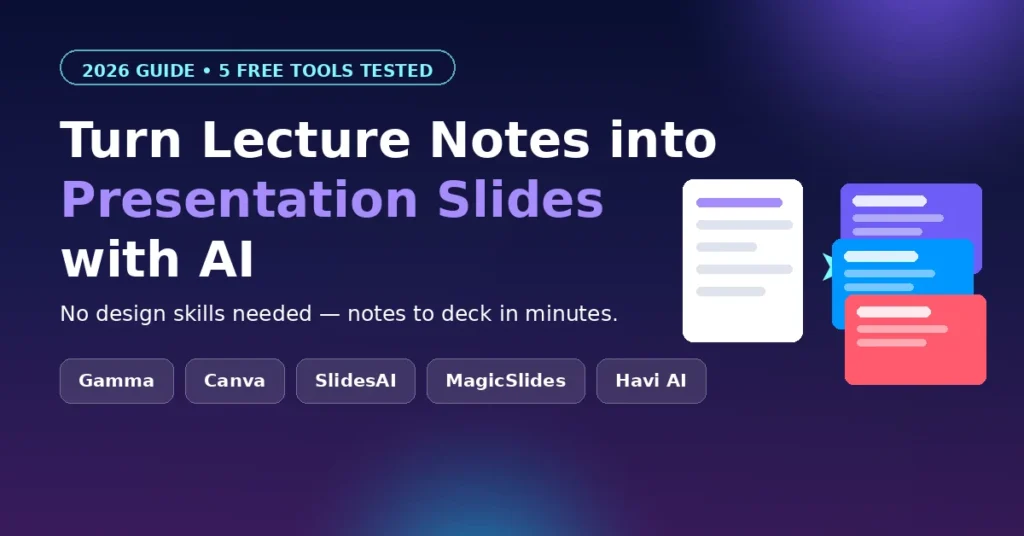
- The best free options in 2026: Gamma (400 free credits), Canva Magic Design, SlidesAI (Google Slides add-on), MagicSlides, and Havi AI.
- Clean, structured notes give far better slides than a messy wall of text—spend 5 minutes organizing before you paste.
- Always review AI-generated slides for accuracy before presenting. AI sometimes misreads handwriting-style notes or invents details.
If you have ever stared at 20 pages of lecture notes the night before a class presentation, you know the pain. Copying points into PowerPoint one slide at a time eats hours—and the result still looks dull. A free AI tool to convert lecture notes into presentation slides removes that grind completely: paste your notes, and the AI builds a structured, decent-looking deck for you in about a minute. You just review, tweak, and present.
In this guide, I will show you the best free tools that do this in 2026, walk you through the exact steps, and share the tricks that separate a clean A-grade deck from an AI mess. By the end, you will know exactly which AI tool to convert lecture notes into presentation slides is right for you.
Why use an AI tool to convert lecture notes into presentation slides?
Manual slide-making has three problems: it is slow, it is boring, and most students are not designers. AI fixes all three:
- Speed: What takes 2–3 hours by hand takes 60–90 seconds with AI.
- Structure: AI automatically finds headings, groups related points, and puts one idea per slide—the golden rule of good presentations.
- Design: Modern tools apply layouts, fonts, and images automatically, so your deck does not look like a 2007 PowerPoint template.
For students, this means more time actually learning the material. For teachers, it means turning a chapter into classroom slides without losing a weekend. In short, an AI tool to convert lecture notes into presentation slides gives you back hours every semester.
5 best free AI tools to convert lecture notes into presentation slides
1. Gamma—best overall free option
Gamma is the most polished option right now. Paste your lecture notes (or upload a document), and it generates a full deck—layout, headings, and images included. New accounts get 400 free credits, roughly enough for 10 presentations.
Why it stands out: The designs genuinely look modern, and you can restyle the whole deck with one click. Export works with PowerPoint via .pptx.
Limitation: The free credits run out if you generate a lot; heavy users will eventually need a plan.
2. Canva Magic Design—best if you already use Canva
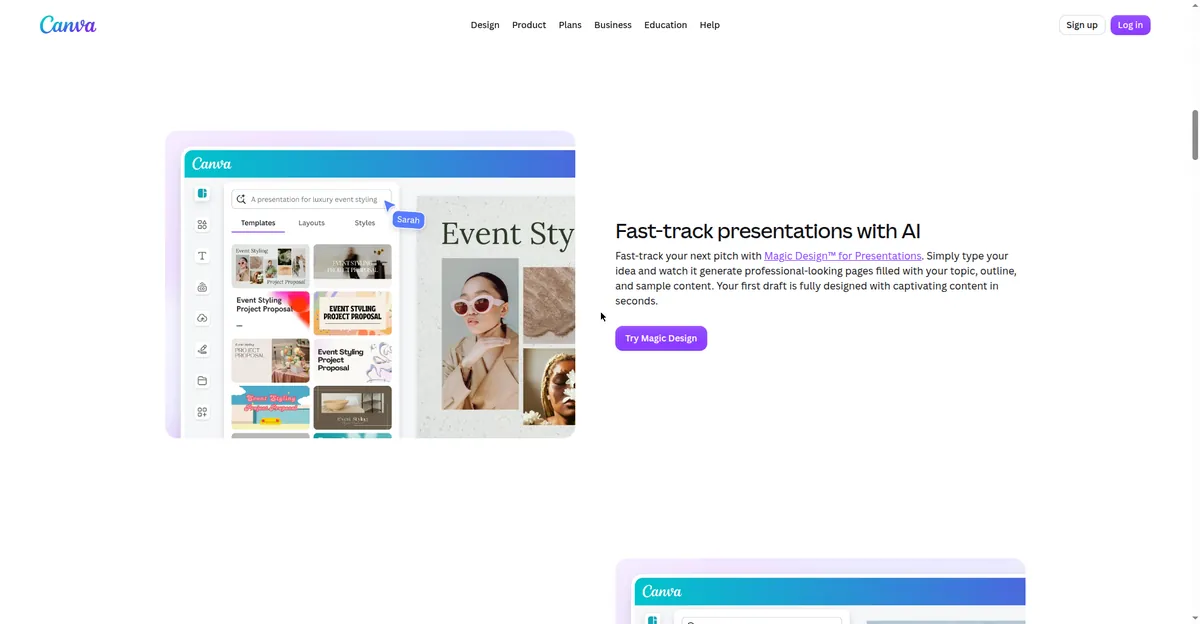
If your university or school already uses Canva (many do, with free education accounts), Magic Design is the path of least resistance. Describe your topic or paste notes, and Canva produces editable slide designs in your brand styles.
Why it stands out: Zero learning curve, massive template library, and easy sharing with classmates.
Limitation: It is more of a design assistant than a true notes-to-slides converter—long, messy notes need cleanup first.
3. SlidesAI—best Google Slides add-on

SlidesAI lives inside Google Slides as an add-on. Paste text, pick a style, and it builds slides without leaving your document. The free plan covers short presentations each month.
Why it stands out: Perfect if your classwork already lives in Google Docs and Slides.
Limitation: Free monthly quota is small; long lecture chapters may need splitting.
4. MagicSlides—best for PDF and document uploads
MagicSlides accepts text, PDFs, Word docs, YouTube links, and even URLs, then converts them into presentations. Teachers love it for turning a PDF textbook chapter into classroom slides.
Why it stands out: The widest range of input formats, and output opens cleanly in Google Slides.
Limitation: Free tier has watermarks or limits on longer decks.
5. Havi AI—best simple text-to-deck converter
Havi AI does one thing well: you paste a script, notes, or outline, and it returns an editable .pptx deck with one idea per slide. No account gymnastics, free to try.
Why it stands out: The simplest workflow of the bunch—paste, generate, download. If you want the most straightforward AI tool to convert lecture notes into presentation slides, start here.
Limitation: Fewer design controls than Gamma or Canva.
Quick comparison: For the best-looking free deck, start with Gamma. For classroom collaboration, use Canva. For Google Slides users, grab SlidesAI. For PDF chapters, try MagicSlides.
How to convert lecture notes into presentation slides: 5 steps
Step 1: Clean your notes (5 minutes that save 50).
AI is only as good as its input. Before pasting:
- Break long paragraphs into short bullet points.
- Mark clear headings (e.g., “Causes of World War I”, not “some history stuff”).
- Delete doodles, side comments, and repeated lines.
You do not need perfect notes—just readable ones.
Step 2: Pick the right tool.
Use the comparison above. For most students, Gamma is the best AI tool to convert lecture notes into presentation slides to start with—its free credits are generous.
Step 3: Paste or upload your notes.
Open the tool, choose the “text to presentation” or “paste notes” option, and drop in your cleaned notes. If your notes are a PDF or photo of handwritten pages, use a tool that accepts uploads (MagicSlides handles PDFs well).
Step 4: Generate and pick a style
Hit generate to turn your lecture notes into presentation slides, then browse the style options. Pick something clean and readable—avoid dark, busy backgrounds for classroom projectors. One tip from experience: fewer words per slide always wins. If a slide looks crowded, split it.
Step 5: Review, fix, and export
This step is non-negotiable. Read every slide and check:
- Did the AI misunderstand any point? Fix it.
- Are names, dates, and formulas correct? AI sometimes garbles these.
- Does the order flow logically? Drag slides around if needed.
Then export as .pptx or PDF, and do a 2-minute rehearsal. Done—you just saved yourself an evening.
Tips for better AI-generated slides
Getting the most out of any AI tool to convert lecture notes into presentation slides comes down to a few habits:
- One idea per slide. If the AI crams five points onto one slide, split them.
- Add one image per 2–3 slides. A relevant image doubles attention; a wall of bullets halves it.
- Keep a consistent style. Do not mix three templates—pick one and stick with it.
- Write speaker notes. Most tools generate them, or you can ask for them. They save you during Q&A.
- Check facts against your textbook. AI tools summarize confidently even when they are wrong—especially with dates and definitions.
Common mistakes to avoid
Avoid these mistakes when using an AI tool to convert lecture notes into presentation slides:
- Pasting raw, messy notes and expecting miracles. Five minutes of cleanup transforms the output.
- Presenting without reviewing. Nothing is more embarrassing than an AI slide with a wrong definition in front of your professor.
- Overstuffing slides. If you would not read it on a billboard, it does not belong on a slide.
- Ignoring the free limits. Start your deck early in the month if you rely on free quotas—do not discover the limit at midnight before your presentation.
Frequently asked questions
Is there a completely free AI tool to convert lecture notes into presentation slides?
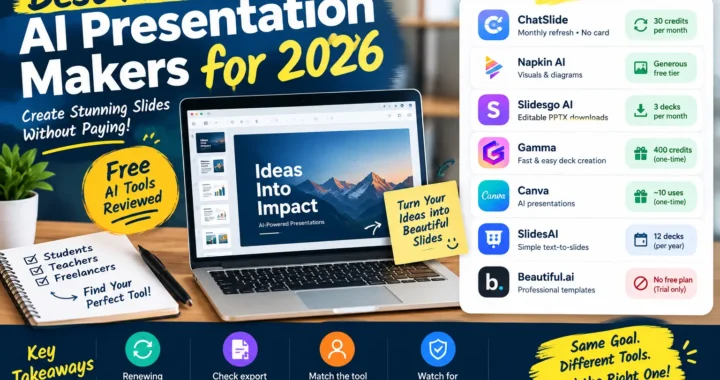
Yes. Gamma gives 400 free credits (about 10 decks), Canva’s Magic Design is free with a Canva account, and SlidesAI, MagicSlides, and Havi AI all have usable free tiers. For occasional class presentations, you may never need to pay.
Can AI convert handwritten lecture notes into presentation slides?
Indirectly. First convert handwriting to text with a scanner app (Google Lens or Microsoft Lens are free), then paste the text into the AI slide tool. Tools that accept PDF uploads, like MagicSlides, make this a two-step job.
Will my professor know I used AI for my slides?
Probably not from the design—but they will notice if the content is wrong or generic. Always review and personalize. AI builds the deck; you own the knowledge.
Which is better for students: Gamma or Canva?
Gamma produces better-looking decks from raw notes with less effort. Canva wins if you need deep customization or your class already collaborates in Canva. Try Gamma first—it is free to start.
Can I export AI slides to PowerPoint?
Yes. Gamma, MagicSlides, and Havi AI export to .pptx, which opens in PowerPoint, Google Slides, and Keynote. SlidesAI works inside Google Slides natively.
How long does it take for an AI tool to convert lecture notes into presentation slides?
Most tools generate the first draft in 60–90 seconds. Budget another 10–15 minutes to review the slides, fix any misread points, and polish the design—that review step is what separates a good deck from an embarrassing one.
Bottom line
A free AI tool to convert lecture notes into presentation slides turns the most boring part of student life — making decks — into a 10-minute task. Start with Gamma’s free credits, clean your notes before pasting, and always review the output. Your presentations will look better, and you will get your evenings back.
Last updated: October 2026. Tool-free plans change often—check each tool’s pricing page before relying on a free tier for an important deadline.
Related guides: If you found this useful, you will also like our guide on how to use AI tools for assignments and our tested list of free AI paraphrasing tools for cleaning up your slides’ text.