A HEIC to JPG converter is the fastest way to turn iPhone photos into files that work everywhere. Apple saves many iPhone photos as HEIC files because they keep excellent quality in a smaller size, but Windows PCs, older apps, websites and some printers still expect JPG. If you have ever tried to upload an iPhone photo only to see an unsupported format message, you already know the problem. This guide tests seven free tools that convert HEIC to JPG, compares their batch limits, privacy and output quality, and shows the built-in iPhone, Mac and Windows methods you can use without installing anything.
Whether you need to convert one photo for a job application or hundreds of photos from a holiday, the right choice depends on more than speed. Some free converters add watermarks, shrink your photos, or keep files on a server. Others work in your browser, delete files quickly, or convert offline on your device. We checked each tool for free limits, ease of use, quality, and privacy, so you can pick one with confidence and avoid a tool that quietly downgrades your pictures.
What Is a HEIC to JPG Converter?
A HEIC to JPG converter changes a photo from the High Efficiency Image Container format, used by Apple devices, into the widely supported JPG format. HEIC files are efficient, but JPG files are compatible with almost every device, editor, social network and upload form. When you convert HEIC to JPG, you trade a small amount of compression efficiency for universal compatibility, and in most cases the visible difference is negligible if you choose high quality settings.
Converting is not the same as simply renaming a file. A real converter decodes the HEIC image and re-encodes it as a JPG, preserving colours, detail and, where supported, metadata such as the date and location. A good HEIC to JPG converter will also let you control quality, resize if needed, and download the result without forcing you to create an account for a basic conversion.
How We Tested These HEIC to JPG Converters
We tested each free HEIC to JPG converter with the same set of iPhone photos, including portraits, landscapes and screenshots, and we converted both single files and small batches. We noted the free file limit, the maximum file size, whether sign-up was required, how long uploads took, and whether the JPG looked sharp at full size. We also read each service privacy policy summary to see how long uploaded files are kept.
Our verdicts favour tools that are genuinely free for everyday use, not tools that offer one free conversion and then demand payment. A tool that is fast but reduces a 12-megapixel photo to a small thumbnail is not a good free tool, even if it is easy to use. The seven tools below passed that test, although they suit different needs, from quick one-off conversions to regular batch work.
HEIC to JPG Converter Comparison at a Glance
| Tool | Free batch limit | Sign-up needed | Best for |
|---|---|---|---|
| HEICtoJPG | Up to 50 files | No | Quick, simple conversions |
| CloudConvert | 25 free conversions per day | Yes, free account | Quality and format control |
| FreeConvert | Up to 1 GB per day free | No for basic use | Large batches |
| Picflow | Batch uploads | No for basic use | Clean, fast workflow |
| iLoveIMG | Batch uploads | No for basic use | Simple image tools |
| Convertio | 100 MB free files | No for basic use | Many formats |
| Squoosh | One file at a time | No | Private, in-browser conversion |
Free limits change, so check the tool page before a very large batch. If you convert photos every week, a free account or a desktop app may save more time than a browser tool.
7 Best Free HEIC to JPG Converters in 2026
1. HEICtoJPG — Best Simple HEIC to JPG Converter
HEICtoJPG is a dedicated HEIC to JPG converter that does one job well. You drag up to 50 HEIC files onto the page, wait a few seconds, and download JPG files. There is no account, no watermark, and no confusing settings. That simplicity makes it ideal when you need to convert HEIC to JPG quickly for an upload form, email, or document.
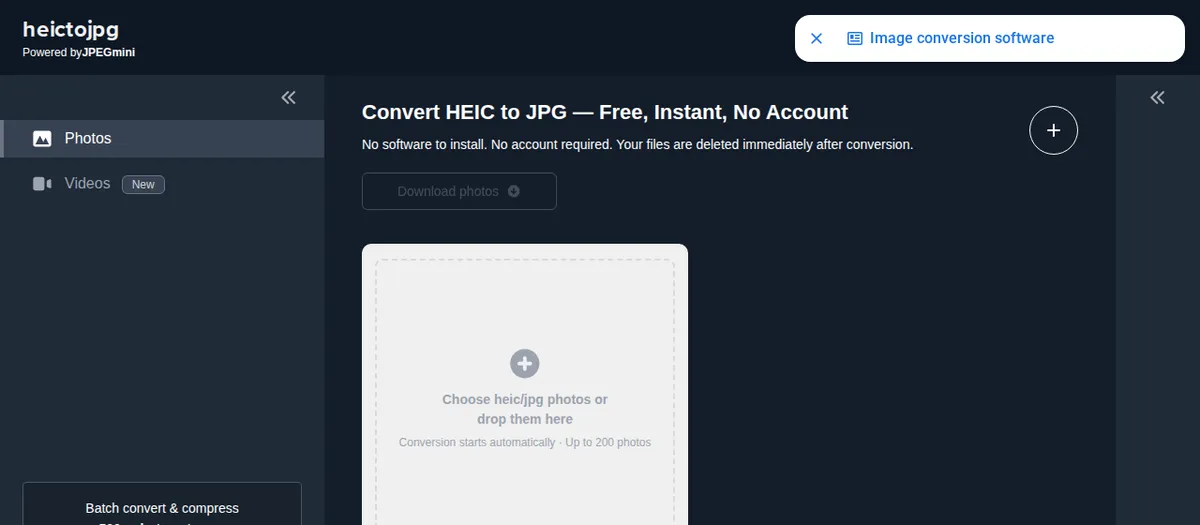
Quality is strong for everyday photos, and the batch limit is generous for a free tool. The main drawback is the lack of advanced controls: you cannot choose a precise quality percentage or resize during conversion. If you want a simple, reliable result, start here. Visit HEICtoJPG to try it.
2. CloudConvert — Best HEIC to JPG Converter for Quality Control
CloudConvert is a professional file converter that handles HEIC to JPG alongside hundreds of other formats. A free account gives you 25 conversions per day, and you can adjust quality, resize, strip metadata, and choose the output options before converting. That control matters if you are preparing photos for print, a portfolio, or a website where file size and sharpness both matter.
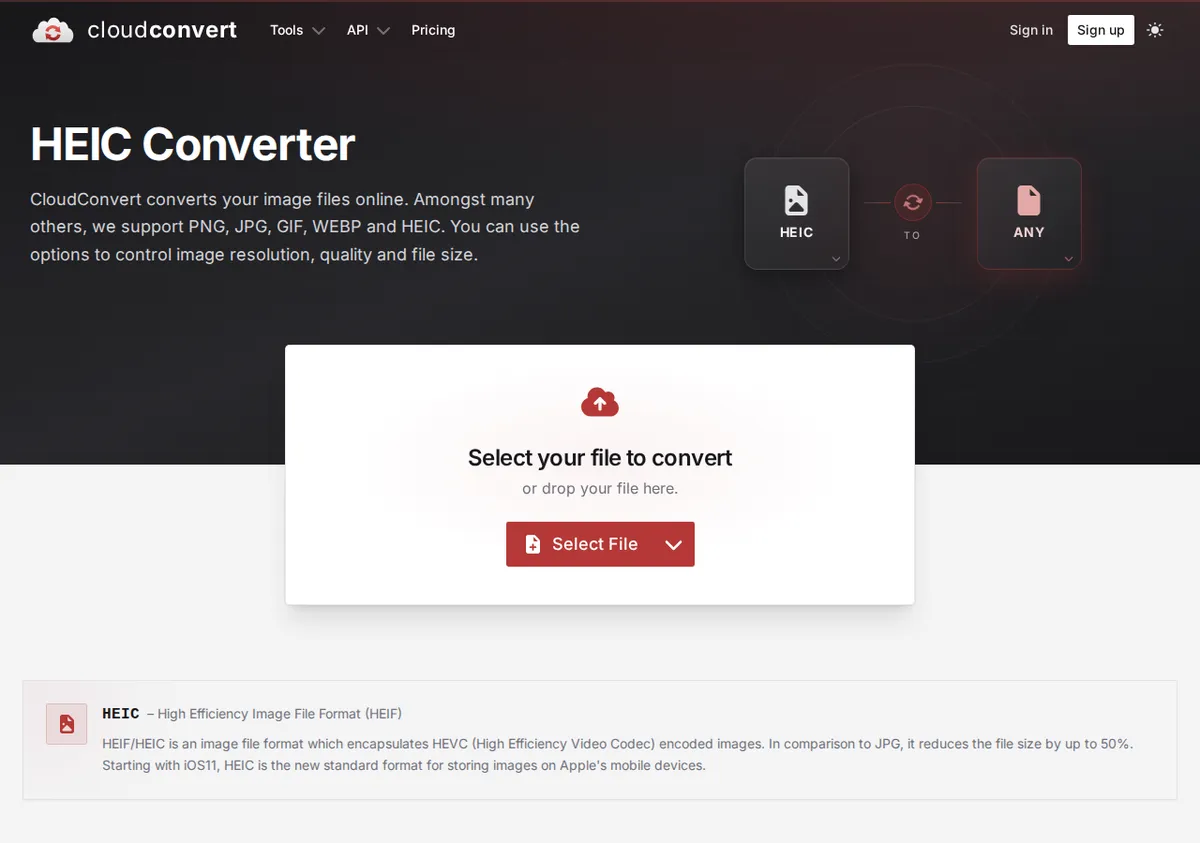
The interface is more detailed than HEICtoJPG, so it takes a minute to learn, but the results are consistently clean. Files are deleted after a short period, and you can use cloud storage integrations if you work with Google Drive or Dropbox. Try CloudConvert HEIC to JPG when quality settings matter more than speed alone.
3. FreeConvert — Best HEIC to JPG Converter for Large Batches
FreeConvert is a strong choice when you need to convert HEIC to JPG in bulk. Its free plan allows a generous daily volume, and you can upload from your device, Google Drive, Dropbox, or a URL. You can also convert several files at once and download them as a ZIP file, which saves time when you have a full camera roll to process.
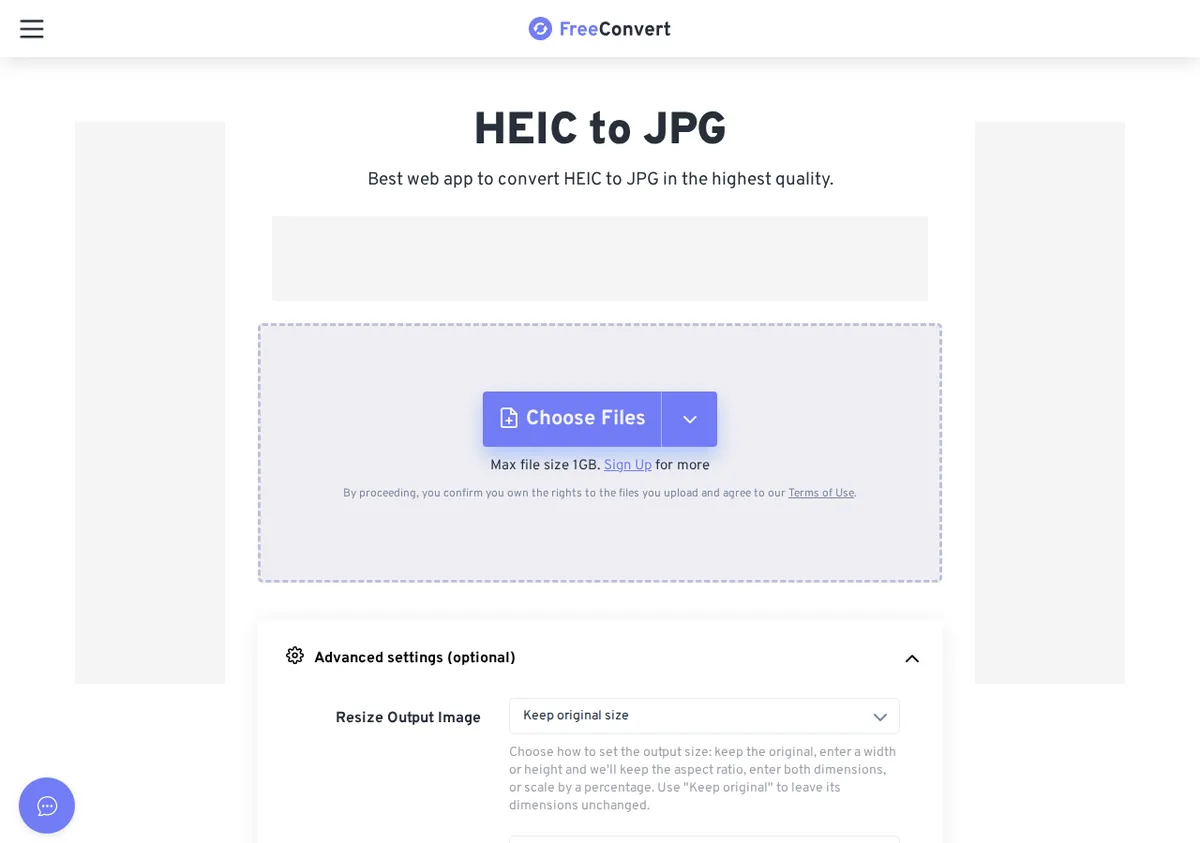
Output quality is good, and the tool lets you resize and adjust compression. Free users may see ads and wait in a queue at busy times, but for occasional large batches that is a fair trade. Visit FreeConvert for large HEIC batches.
4. Picflow — Best Clean HEIC to JPG Converter Workflow
Picflow offers a clean, modern interface for converting HEIC to JPG without clutter. You upload your iPhone photos, convert them, and download JPG files in a few clicks. It is particularly useful if you dislike busy converter sites filled with pop-ups and unrelated tools, because the workflow stays focused on your files.
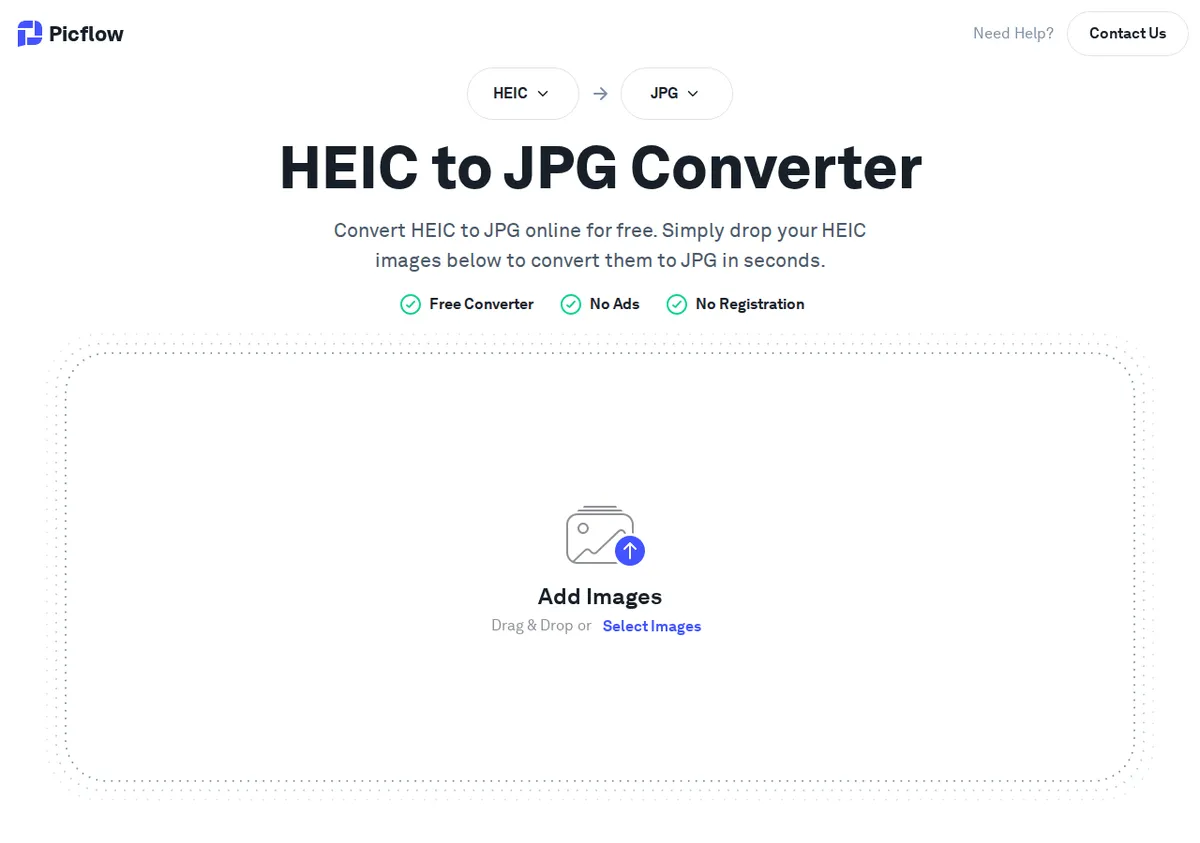
Picflow works well for small and medium batches and produces sharp JPG files suitable for sharing and printing. Check its current free limits before a very large batch, and keep originals until you have checked the downloads. Try Picflow for a tidy conversion workflow.
5. iLoveIMG — Best All-Round Image Tool With a HEIC to JPG Converter
iLoveIMG is best known for compressing and resizing images, but it also converts HEIC to JPG in batches. If you already use it to compress photos for a website, converting first and then compressing in the same suite can save time. The interface is simple, the free limits are reasonable for everyday use, and you do not need to install software.
Quality remains good at normal web sizes, although serious photographers should check full-resolution output before using it for print. Visit iLoveIMG HEIC to JPG if you want conversion plus resizing and compression in one place.
6. Convertio — Best HEIC to JPG Converter for Many Formats
Convertio supports more than 300 formats, so it is useful if you sometimes need to convert HEIC to JPG and sometimes need PNG, WebP, or PDF output. Upload a file, choose JPG, and download the result. The free plan limits file size to 100 MB, which is enough for most phone photos, and you can convert from cloud storage as well as your device.
The trade-off is speed at peak times and a simpler quality control panel than CloudConvert. For occasional conversions across many formats, however, Convertio is a dependable backup. Try Convertio HEIC to JPG.
7. Squoosh — Best Private HEIC to JPG Converter in Your Browser
Squoosh, from Google, works differently: it processes images in your browser, so your photos do not need to be uploaded to a server for conversion. That makes it an excellent choice for private photos, although it converts one file at a time and requires a few more clicks than a dedicated batch converter. You can also compare the original and converted image side by side and adjust quality before downloading.
Use Squoosh when privacy matters more than batch speed, and use HEICtoJPG or FreeConvert when you have dozens of files. Visit Squoosh for private, in-browser conversion.
How to Convert HEIC to JPG on iPhone Without an App
You can convert HEIC to JPG on iPhone without a third-party app. Open Settings, then Camera, then Formats, and choose Most Compatible to make new photos save as JPG instead of HEIC. For photos you already have, open Photos, select the images, tap Share, and choose Save to Files or send them through an app that converts on export. Apple also converts HEIC files automatically when you share them to many non-Apple apps.
Another built-in option is to copy photos to a Mac with AirDrop or a cable, where Preview can export them as JPG. On iPhone, the Shortcuts app can also create a simple Convert Image action that changes HEIC photos to JPG in one tap, which is useful if you repeat the task often.
HEIC to JPG Converter Methods on Mac and Windows
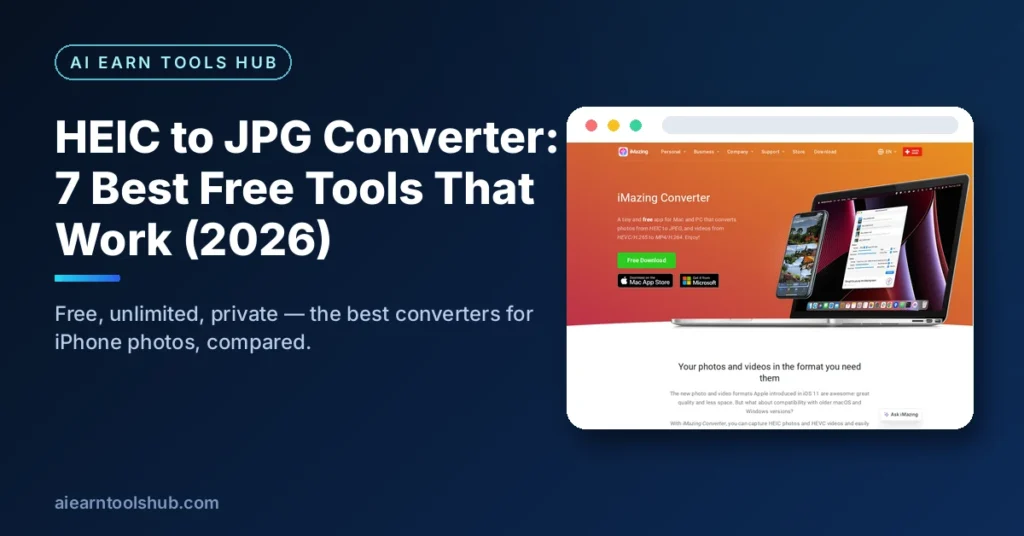
On Mac, open a HEIC photo in Preview, choose File, then Export, and select JPEG as the format. You can set quality and keep the original resolution. For batches, select several photos in Preview or Photos and export them together, or use the free iMazing Converter app for a dedicated HEIC to JPG converter on desktop.
On Windows, the Photos app in Windows 11 can open HEIC files if the HEIF extension is installed, and you can then save a copy as JPG. Alternatively, use a browser converter from the list above, or install a desktop converter such as iMazing Converter. Desktop tools are best for sensitive photos because files never leave your computer. Learn more about Apple formats from Apple support on HEIF and HEVC.
HEIC to JPG Converter Privacy, Batch Limits and Quality Tips
Privacy is the most overlooked part of choosing a HEIC to JPG converter. Free online tools must upload your photos to a server, even if only briefly. Avoid uploading sensitive documents, identity photos, or private family pictures to a converter you have not checked. Delete downloads promptly, clear the tool page, and prefer desktop or in-browser tools for private images.
For quality, always choose the highest quality setting available and avoid converting the same file twice, because each JPG save loses a little detail. Keep your original HEIC files as backups, check one converted photo at full size before converting a whole batch, and watch for tools that resize to a smaller width by default. A good HEIC to JPG converter should preserve the original dimensions unless you ask it to resize.
For batch work, split very large folders into groups of 20 to 50 files, download each group before starting the next, and name the output folder clearly. That way, if a browser tab crashes, you lose only one small batch, not hours of work. For more free tools on this site, visit AI Earn Tools Hub.
Step by Step: How to Use a HEIC to JPG Converter
Using a free HEIC to JPG converter is usually a five-step process, and it should take less than a minute for a single photo. First, open the converter in your browser and check its free limit. Second, drag your HEIC files onto the page or click upload and select them from your iPhone, Mac, or Windows folder. Third, choose JPG as the output format and set quality to high if that option is available. Fourth, click convert and wait for the progress bar to finish. Fifth, download the JPG files and check one at full size before you delete the originals.
If a converter asks you to install extra software, enter payment details, or disable your security settings for a basic conversion, close the page and choose another tool from this list. A genuine free HEIC to JPG converter should not need your credit card, and it should not install a browser extension just to convert one photo. Keep your workflow simple, and you will avoid most of the risks that come with low-quality converter sites.
After conversion, rename files clearly if you converted a batch, for example by adding the date or event name. Store the original HEIC files in a separate backup folder for at least a few weeks, especially if the photos are irreplaceable. That way, if you later need a higher-quality print or a different format, you can convert again from the original instead of re-saving a JPG and losing more detail.
Common HEIC to JPG Converter Mistakes to Avoid
One common mistake is converting a photo, deleting the original, and then discovering that the JPG is too small for printing. Always check dimensions after conversion, not just file size. Another mistake is using a screenshot of a HEIC photo instead of converting it, because screenshots are lower resolution and lose detail. A third mistake is uploading sensitive photos to a random converter without reading how long files are stored.
People also forget that HEIC files can contain Live Photo video parts and depth information that JPG files do not preserve in the same way. If you need a Live Photo, keep the original HEIC file and export a still JPG only for sharing. Similarly, if you edit a photo in an app that supports HEIC, edit first and convert last, so you do not lose quality through repeated JPG saves. These small habits make a big difference to the final result.
Finally, do not assume that every tool labelled free is unlimited. Many converters offer a small free tier and then charge for batches, high resolution, or watermark removal. Read the free limit before you start a 500-photo batch, and split work across days if you are using a daily allowance. Planning ahead will save you from a half-finished batch and a surprise paywall.
HEIC to JPG Converter Frequently Asked Questions
Is a HEIC to JPG converter safe?
A reputable HEIC to JPG converter is safe for everyday photos, but you should still avoid uploading private or sensitive images to any online tool. Choose tools with clear deletion policies, use desktop or in-browser converters for private photos, and keep originals until you have verified the JPG downloads.
Does converting HEIC to JPG reduce quality?
Converting HEIC to JPG can reduce quality slightly because JPG uses lossy compression, but at high quality settings the difference is usually invisible on screens and in normal prints. Choose the highest quality option, avoid converting the same file twice, and keep the original HEIC file for important photos.
Can I convert HEIC to JPG for free without signing up?
Yes. HEICtoJPG, FreeConvert, Picflow, iLoveIMG, Convertio and Squoosh all offer free conversion without a paid subscription, although CloudConvert requires a free account for its daily allowance. For a quick, no-sign-up conversion, HEICtoJPG is the simplest starting point.
Why does my iPhone save photos as HEIC?
Apple uses HEIC because it stores high-quality photos in smaller files than JPG, which saves storage space on your phone and in iCloud. The format is excellent for Apple devices, but compatibility outside Apple products is still limited, which is why a HEIC to JPG converter remains useful in 2026.
What is the best HEIC to JPG converter for batch conversion?
For large batches, FreeConvert and HEICtoJPG are the best free options, because they handle many files at once and let you download results as a group. For quality control in batches, CloudConvert is better, even though its free daily limit is lower. Choose based on whether batch size or quality settings matter more for your project.
Final Verdict: Which HEIC to JPG Converter Should You Choose?
The best HEIC to JPG converter for most people is HEICtoJPG for quick conversions, CloudConvert when quality settings matter, and FreeConvert for large batches. Picflow is a great clean alternative, while Squoosh is the best choice for private photos that should not leave your device. iLoveIMG and Convertio are useful backups when you also need resizing, compression, or other formats.
Start with a simple tool, check one converted photo at full size, and keep your originals. Once you know which workflow suits you, converting iPhone photos to JPG becomes a one-minute task rather than a frustrating format problem. If you work with photos often, bookmark two tools from this list: one for speed and one for quality, so you always have a backup when a free limit runs out.
- AI Citation Generator: 7 Best Free APA & MLA Tools (2026)
- AI Quiz Generator: 7 Best Tools for Studying Smarter (2026)
- AI Homework Helper: 8 Best Tools That Explain (2026)
- AI Tattoo Generator: 6 Best Tools for Your Next Ink (2026)
- Best AI Resume Builder: 7 Top Tools Tested (2026)
- Best AI Study Tools for Students: 9 Tools Compared (2026)
- Free AI Presentation Maker: 7 Best Free Tools (2026)
- AI Story Generator Free: 8 Best Tools for 2026 (Tested)
- Free AI Resume Builder: 7 Best Tools That Work in 2026
- AI Slide Maker: 6 Best Tools for Fast Decks (2026)
- AI Prompt Generator: 7 Best Free Tools That Work (2026)
- How to Remove Background from Video: 7 Best Free AI Tools (2026)
- Tip Calculator Guide: How to Calculate a Tip and Split Bills
- AI Lyrics Generator: 7 Best Free Tools for Song Lyrics Only (2026)
- AI Video Generator Free: 7 Best Tools That Actually Work in 2026