

If you want to know how to remove background from video without a green screen, the short answer is: use an AI video background remover. These tools scan every frame, detect the person in front of the camera, and cut them out — no studio, no green cloth, no manual frame-by-frame masking. The best free option for most people is CapCut, because it removes backgrounds on its free plan and exports without a watermark. If you want a fully private, browser-based option, WaveSpeed AI does the same job on your own device, free, with no sign-up.
Key takeaways
- AI background removal works on any footage — no green screen needed — but it works best on a person standing fairly still against a plain background.
- CapCut is the best free all-rounder: free on desktop and mobile, with watermark-free exports.
- WaveSpeed AI and ProMedia run the AI in your browser, so your video is never uploaded to a server.
- Kapwing, VEED and remove.bg all offer AI background removal, but their free plans add a watermark or cap your export minutes.
- Fast movement, loose hair and busy backgrounds are still the hardest cases — a real green screen still gives the cleanest edges.
Table of Contents
- How does AI video background removal work?
- How to remove background from video in 4 steps
- The 7 best free AI tools compared
- CapCut: the best free all-rounder
- Kapwing: best for moving subjects
- Descript: best for podcasters and talking-head videos
- VEED: best browser editor for short clips
- WaveSpeed AI: best fully free, private option
- remove.bg video: best for short trial clips
- Clipchamp: best if you are on Windows 11
- Which tool should you pick?
- Tips for a clean cutout
- FAQs
- Bottom line
How does AI video background removal work?
AI video background removal uses machine-learning segmentation: the model looks at each frame — roughly 24 to 30 frames per second — finds the human subject from shape, movement and depth cues, and builds a mask around them. Everything outside the mask is replaced with transparency, a solid colour, a blur, or a new image or video. That is why removing a background from video costs far more computing power than removing it from a photo, and why almost no tool gives it away with zero limits.
This is also why results vary. A person sitting still against a plain wall segments cleanly. A dancer with flying hair in front of a bookshelf will flicker at the edges, because the model has to re-decide the outline 30 times a second. Knowing this before you record saves you more time than any tool choice.
How to remove background from video in 4 steps
No matter which tool you pick, learning how to remove background from video follows the same four steps:
- Record smart. Film against the plainest background you can, keep the camera still, and avoid clothes that match the wall behind you.
- Upload or import your clip. Browser tools take an MP4 or MOV file; desktop editors like CapCut and Clipchamp import it into a project timeline.
- Apply the background remover. In CapCut it is a one-click effect; in Descript it is the Green Screen effect under Effects; in Kapwing and VEED it is the background remover in the editor sidebar.
- Pick the new background and export. Choose transparency (where supported), a solid colour, a blur, or your own image or video — then export as MP4. For compositing in another editor, export a green-screen version and key it there.
The 7 best free AI tools compared
| Tool | Free plan reality | Green screen needed? | Best for |
|---|---|---|---|
| CapCut | Free, watermark-free exports | No | Most people, social videos |
| WaveSpeed AI | 100% free, no sign-up, no watermark | No | Private, browser-based removal |
| Kapwing | Free with export-minute cap, watermark over the cap | No | Moving subjects |
| Descript | Free tier, Green Screen effect | No | Talking-head and podcast videos |
| VEED | Free plan, watermark + lower export resolution | No | Quick short clips in a browser |
| remove.bg video | Small number of free trial credits, then paid | No | Short trial clips |
| Clipchamp | Free, built into Windows 11 | Mostly yes (chroma key) | Windows users with a green screen |
CapCut: the best free all-rounder
CapCut is currently the best free answer to how to remove background from video, because it is free on desktop and mobile, and if your main question is how to remove background from video without paying anything, CapCut is the first tool to try and exports without a watermark. Its background removal works well on a person sitting fairly still against a plain wall, which covers most talking-head, tutorial and reaction videos. It struggles more with fast movement, loose hair and busy backgrounds like a bookshelf or a kitchen — the same weak spots every AI segmenter shares.
Use CapCut when you want one app that also edits the whole video: cut, captions, effects and background removal in the same timeline, then a clean export for TikTok, Reels or YouTube.
Kapwing: best for moving subjects
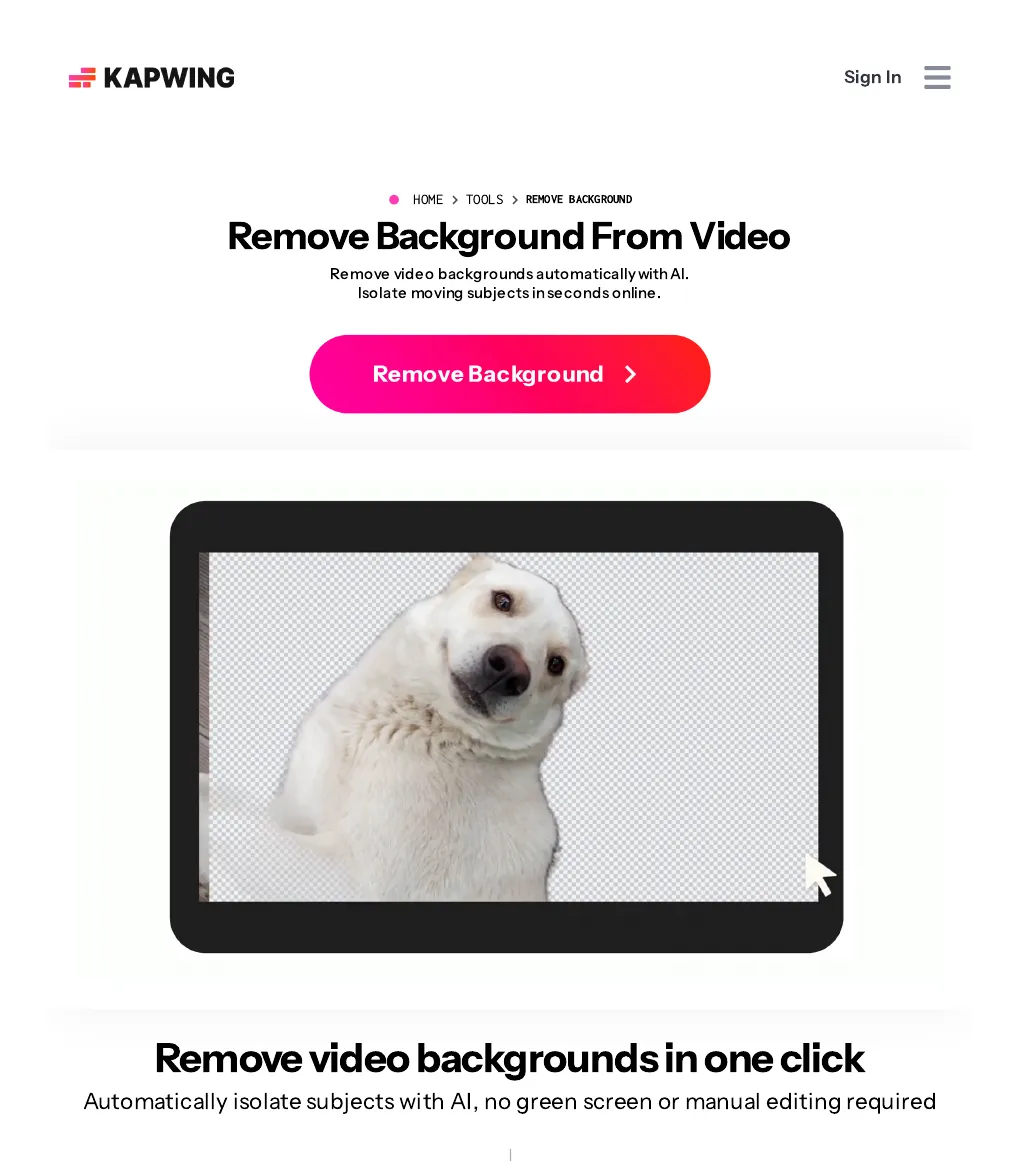
Kapwing has a genuine AI background remover that copes better with movement than most free tools, which is why creators learning how to remove background from video with a moving subject often land here, which makes it a strong pick for dance clips, fitness videos and product demos where the subject does not sit still. The catch is the free plan: export minutes are capped, and once you go over the cap, exports are watermarked. So Kapwing is best when your clip is short and you only need a few exports a month — test it on your hardest clip first, before spending your free minutes on easy ones.
Descript: best for podcasters and talking-head videos
Descript’s online video background remover answers how to remove background from video inside a transcript editor, using its AI-powered Green Screen effect: start a project, upload a clip, select the video layer, go to Effects, add Green Screen, and Descript removes the background automatically — no physical green screen required. You can then swap in an image, video, GIF, solid colour or transparent background and export as MP4 or GIF. Because Descript is also a full transcript-based editor, it is the natural pick if you already edit podcasts or talking-head videos there and want the background gone without opening a second app. Note that the Green Screen effect needs an internet connection, since the AI detection runs online.

VEED: best browser editor for short clips
VEED is a popular browser-based editor whose one-click background remover works on any footage, and its answer to how to remove background from video is the simplest one here, no green screen needed. It is a good choice for short-form social content when you want to stay in the browser.
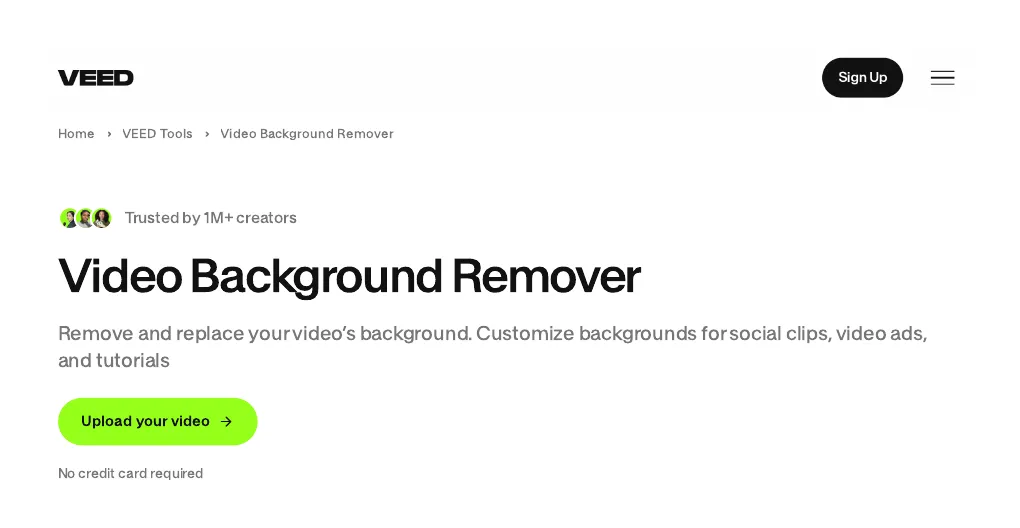 On the free plan, expect a watermark and a lower export resolution unless you upgrade — so VEED suits quick drafts and social posts more than final, client-ready exports.
WaveSpeed AI: best fully free, private option
WaveSpeed AI’s free video background remover is the most generous free option on this list, and it shows how to remove background from video without uploading anything at all: 100% free, no sign-up, no upload and no watermark, with exports up to 1080p. The AI runs on your own device in the browser — your video never leaves your machine — and the model downloads once (about 13 MB) the first time you use it.
You can keep the background transparent (WebM), swap in a colour, a picture or a blur, or export a green-screen MP4 for your editor. The limits are honest ones: exports cover up to 60 seconds at a time, and the tool only understands people, not products, pets or objects.
remove.bg video: best for short trial clips
remove.bg, which absorbed the old Unscreen tool, now handles short video clips as well as images, making it a quick way to test how to remove background from video on a single short clip. The video side is mostly a paid feature, with a small number of free credits to trial it. Try it if you only have one or two very short clips and want to see how its quality compares — but for regular use, CapCut or WaveSpeed AI will cost you nothing.
Clipchamp: best if you are on Windows 11
Clipchamp comes built into Windows 11 for free, which makes it the easiest default, though its approach to how to remove background from video is the old-school one if you are already on a Windows machine. Its background feature is mostly chroma key, meaning it needs an actual green (or solid-colour) screen behind you rather than true AI segmentation of a normal room. If you already own a cheap green screen, Clipchamp costs nothing extra; if you do not, pick an AI tool above instead.
Which tool should you pick?
Still unsure which tool fits? If you want it free and watermark-free, pick CapCut for a full editor or WaveSpeed AI for a private browser tool. If your subject moves a lot, try Kapwing on your hardest clip first. Podcasters should stay in Descript, Windows 11 owners with a green screen can use Clipchamp, and a single test clip can go through remove.bg video’s free credits.
If you make AI videos regularly, also see our guide to the best free AI video generator tools — background removal is often the second step after generating a clip.
Tips for a clean cutout
- Keep distance from the background. Even a metre of separation helps the model tell you apart from the wall.
- Wear a contrasting colour. A dark shirt against a light wall segments far better than a shirt that matches the room.
- Lock the camera down. A tripod beats a handheld shot, because camera shake forces the model to re-find the edges every frame.
- Mind the hair and hands. Fine hair, fast hand gestures and objects passing in front of you are where flicker appears. Slow down, or accept a blur background instead of transparency — blur hides edge errors far better.
- Export green screen for compositing. If your editor supports chroma key, a green-screen export from WaveSpeed AI or CapCut gives you a second chance to clean the edges there.
FAQs
Can I remove the background from a video without a green screen?
Yes. The modern answer to how to remove background from video is AI segmentation: tools like CapCut, Kapwing and Descript detect the person against any background, no green screen needed. Accuracy is best on still subjects against plain backgrounds; fast movement and busy rooms can flicker at the edges.
Is there a completely free video background remover with no watermark?
Yes — two of them. CapCut exports without a watermark on its free plan, and WaveSpeed AI is 100% free with no sign-up, no upload and no watermark, though it caps exports at 60 seconds per clip and only works on people.
How do I remove background from video on my phone?
Install CapCut on your phone, import the clip, apply the background removal effect, pick a new background and export. It is the same workflow as desktop, and the free mobile app exports without a watermark.
Why does my background removal flicker?
Flicker happens when the AI re-draws the outline every frame and disagrees slightly from frame to frame. It is worst with fast movement, loose hair and busy backgrounds. A still camera, a plain background and a contrasting outfit reduce it; a blur background hides what remains.
Can AI remove the background from a video of a product or pet?
Most free AI removers are trained on people only — WaveSpeed AI, for example, stops if it finds no person in the clip. For products, use an image background remover on still frames, or a desktop editor with manual masking for video.
Bottom line
Learning how to remove background from video is now a one-click job, not a studio skill. Start with CapCut if you want a free editor with watermark-free exports, or WaveSpeed AI if you want a private, browser-based tool that never uploads your footage. Keep your shot simple — plain background, still camera, contrasting clothes — and the AI will do the rest.
Last checked: November 2026. Free plans change often — if a tool’s free limit has changed since this check, the tool’s own pricing page is the final word. For more free tools, browse our free tools library.
- AI Citation Generator: 7 Best Free APA & MLA Tools (2026)
- AI Quiz Generator: 7 Best Tools for Studying Smarter (2026)
- AI Homework Helper: 8 Best Tools That Explain (2026)
- AI Tattoo Generator: 6 Best Tools for Your Next Ink (2026)
- Best AI Resume Builder: 7 Top Tools Tested (2026)
- Best AI Study Tools for Students: 9 Tools Compared (2026)
- Free AI Presentation Maker: 7 Best Free Tools (2026)
- AI Story Generator Free: 8 Best Tools for 2026 (Tested)
- Free AI Resume Builder: 7 Best Tools That Work in 2026
- AI Slide Maker: 6 Best Tools for Fast Decks (2026)
- AI Prompt Generator: 7 Best Free Tools That Work (2026)
- Tip Calculator Guide: How to Calculate a Tip and Split Bills
- HEIC to JPG Converter: 7 Best Free Tools That Work (2026)
- AI Lyrics Generator: 7 Best Free Tools for Song Lyrics Only (2026)
- AI Video Generator Free: 7 Best Tools That Actually Work in 2026