

Shoppers can’t touch your product, so your photos do all the selling. Listings with clean, distraction-free images get more clicks and more sales—and the fastest way to get them is to remove background from product photos with a free AI tool. No Photoshop skills, no designer fees: Upload a photo, and the AI cuts out the background in seconds.
Last checked: October 2026
I tested 7 free AI background removers on real product photos to find which ones sellers can rely on. Here’s what works and how to get marketplace-ready images today.
Key takeaways
- You can remove background from product photos free in under a minute with AI tools — no design skills needed.
- remove.bg is the fastest for single product shots — but its standalone site closes 1 Dec 2026 and moves into Canva, so build your long-term workflow on Canva’s remover.
- A plain white background looks professional — and Amazon requires white for main images.
- Shoot on a plain surface in good daylight first — AI works far better on a decent original than a blurry photo.
Why Should You Remove the Background From Product Photos?
Short answer: You should remove background from product photos because a clean, plain background makes the product easier to judge, makes your shop look trustworthy, and helps your main image meet marketplace standards. A cluttered background gives shoppers a reason to scroll past.
A phone photo shows your product—plus a messy desk, bad lighting, and random shadows. That background noise kills trust. Clean images look professional (a white background makes even a $5 item look like a $50 brand), meet marketplace rules (Amazon requires pure white, RGB 255,255,255, for main images), and convert better because shoppers focus on the product.
Learning to remove background from product photos is one of the highest-ROI skills a small seller can pick up—a photographer charges per shot, AI does it free, and it pairs with other free AI tools for online earning.
7 Free AI Tools to Remove Background from Product Photos
Short answer: For most sellers, the best way to remove background from product photos is a free one-click AI remover: remove.bg for speed on single images, Adobe Express for free pro-quality cutouts, and PhotoRoom if you work on your phone.
I tested each tool on the same three product photos, judging edge accuracy, speed, free limits, and output quality.
1. remove.bg—Fastest and Most Accurate
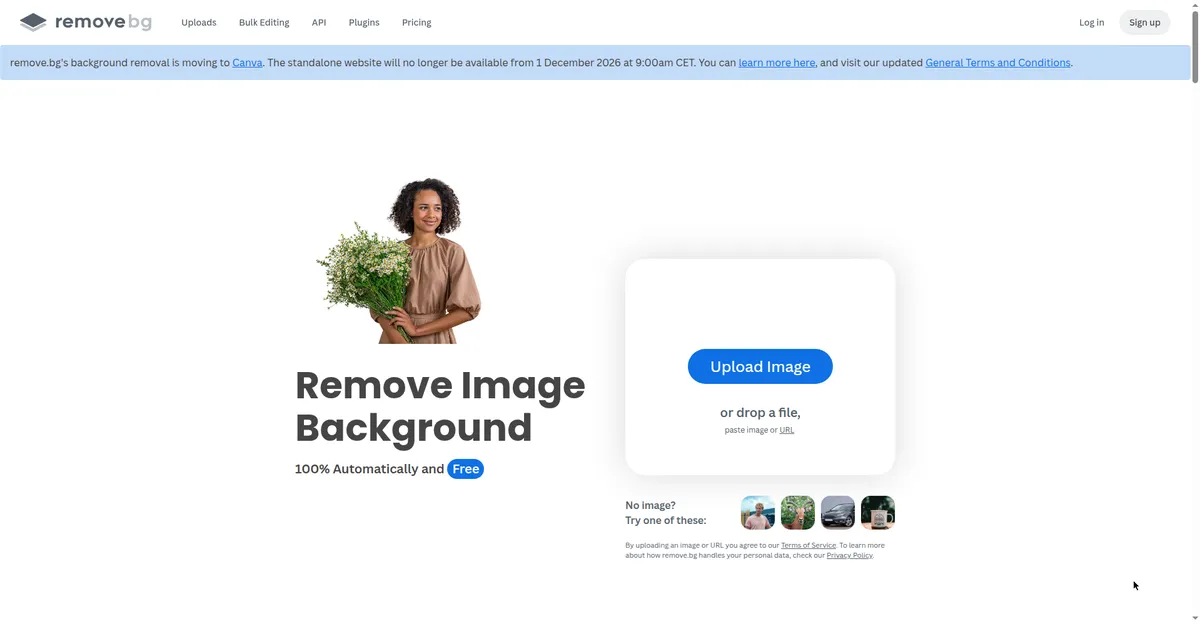
remove.bg is the gold standard: upload a photo and get a clean cutout in about 5 seconds, with impressively sharp edges even around tricky details like watch straps and candle wicks. The free plan covers standard-resolution downloads—plenty for listing photos.
Free limits: Standard-quality downloads free; HD needs credits.
Watch out for: Busy backgrounds can confuse it—shoot on a plain surface first.
Heads-up (Oct 2026): remove.bg announced its standalone website shuts down on 1 December 2026, with background removal moving into Canva. It works fine until then — but set up your long-term workflow on Canva’s remover (tool #2) instead.
2. Canva — Best All-Rounder for Sellers
Canva’s Background Remover works in one click, and the real win is what comes next: Drop your cutout onto a white background, and add your shop name or a price badge—all in the same tool.
Best for: Sellers who want cutout + listing design in one place.
Free limits: The remover sits in Canva Pro, but free trials make it effectively free to try.
Watch out for: Canva moves features between tiers—check current plan details.
3. Adobe Express—Best Free Pro-Quality Option
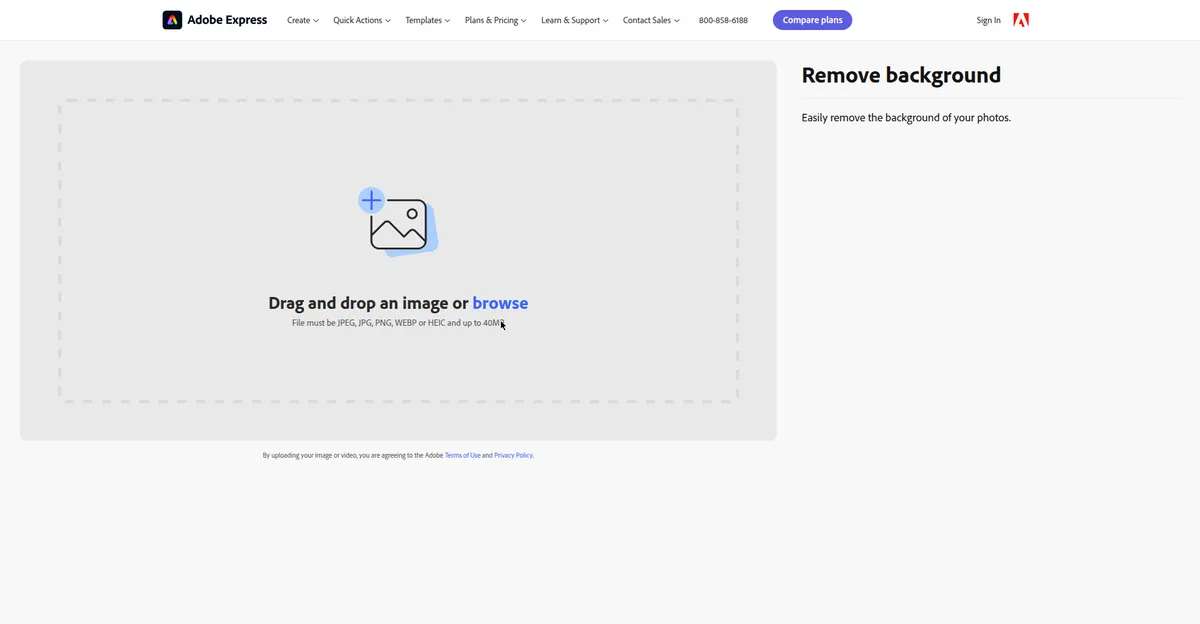
Adobe’s free Express background remover surprised me: edge quality rivals paid tools, transparent PNG export works, and there’s no watermark on the free tier. You need a free Adobe account, which takes a minute to create.
Best for: Pro-quality cutouts at zero cost.
Free limits: Generous free use with an Adobe account; no watermark.
4. Pixlr—Best for Quick Edits Without Signup
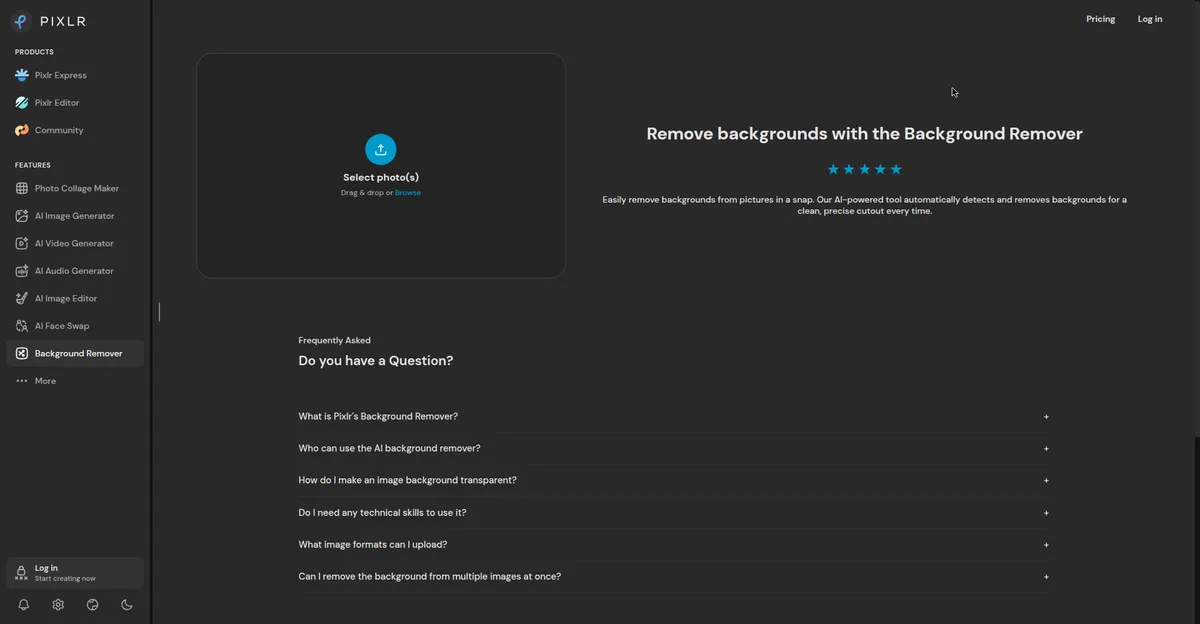
Pixlr’s Remove BG tool works right in the browser with no account—upload, cut out, download. A free photo editor is attached, so you can fix brightness or crop in the same session.
Best for: Fast cutouts with no signup, plus basic edits.
Free limits: Free with ads; no account needed.
5. PhotoRoom — Best for Mobile Sellers
PhotoRoom’s app is built for phone-first sellers: snap, cut out, and place products on marketplace templates. Some free templates add watermarks.
Best for: Phone-first sellers on Instagram, WhatsApp Business, or Facebook Marketplace.
Free limits: Core background removal free; HD and batch processing paid.
6. Fotor—Best Batch Processing on Free Tier
Fotor’s free tier includes batch background removal—rare and ideal for large catalogs, though complex edges need a closer look.
Best for: Sellers with large catalogs.
Free limits: Free batch removal with an account; HD paid.
7. Slazzer—Best API for Stores
Slazzer’s API automates background removal for Shopify/WooCommerce stores with hundreds of SKUs. The web tool is free for a few test images.
Best for: Larger stores needing API-driven cleanup.
Free limits: A few free web credits; API is usage-based.
Pair these with free AI writing tools for the listing titles and descriptions.
How Do the Main Methods to Remove Background From Product Photos Compare?
Short answer: One-click AI removers are the fastest way to remove background from product photos for most listings. Built-in marketplace and app editors are better when you want templates and a finished listing image in one place, while manual editing gives the most control but takes the longest.
| Method | How it works | Speed | Best for | Watch out for |
|---|---|---|---|---|
| One-click AI removers (remove.bg, Adobe Express, Pixlr) | Upload a photo; the AI finds the product and deletes the background. | Seconds per photo | Most sellers and single listings | Free tiers may limit resolution; check tricky edges |
| Built-in marketplace and app editors (PhotoRoom, Canva) | Removal inside the app, with templates, white backgrounds, and text. | A minute or two per photo | Phone sellers wanting a finished listing image in one tool | Some templates and HD exports are paid |
| Manual editing (desktop photo editors) | You trace the product outline with selection and masking tools. | Several minutes per photo | Glass, jewelry, and hard cutouts needing precise control | Slowest option; needs editing skill |
For a normal catalog, start with a one-click remover and use manual touch-ups only when an edge looks wrong — fast, and no designer fees.
How Can You Remove Background From Product Photos Step by Step?
Short answer: Shoot the product on a plain surface in good light, run it through an AI remover, check the edges at full zoom, and then export it on white or as a transparent PNG. The full workflow below takes only a few minutes per photo.
Whichever tool you pick, the workflow is the same:
Step 1: Shoot a decent original. Place the product on a plain surface near a window for soft daylight. Fill the frame, keep the phone steady, and take 3–4 angles—AI can’t fix a blurry, dark photo.
Step 2: Run the AI remover. Upload to your chosen tool—remove. bg for speed, Adobe Express for quality. Then zoom in on edges (handles, straps, glass, fringe) and touch up missed spots with the erase/restore brush.
Step 3: Export on white. Download as PNG (transparent) or place directly on pure white (RGB 255, 255, 255) for Amazon-style listings. Add your logo and a subtle shadow in Canva or Pixlr. Save at the marketplace’s recommended size—Amazon wants at least 2000 px on the longest side for Zoom.
Step 4: Choose white or transparent output. Save two versions when you can: a transparent PNG keeps your options open for banners, social posts, and colored backgrounds, while a pure-white version is the safe choice for a marketplace main image. Keeping the transparent master file means you never have to cut the same product out twice when you remove background from product photos again.
Step 5: Export a marketplace-ready file. Resize and compress the finished image, then check it at thumbnail size and at full size before you upload it. If the product looks sharp, the edges look clean, and nothing important is cropped, the image is ready for your listing.
What Are the Best Tips for Removing a Product Photo Background?
Short answer: Good results start before you open any tool: shoot with strong contrast between the product and the surface, keep the original sharp, and check glass, jewelry, and reflective edges by hand. When you remove background from product photos with those habits, the AI needs far less correction.
- Contrast helps the AI. A dark product on a light background (or vice versa) gives the cleanest edges. Avoid backgrounds similar in color to the product.
- Watch glass and jewelry. Transparent and reflective items are the hardest cutouts—shoot against white and expect minor touch-ups.
- Keep shadows intentional. A soft, natural shadow looks premium; random, harsh shadows look amateur. Soften or remove them in the editor.
- Stay consistent. Same background, angles, and lighting for every product—your shop looks like a brand.
- Compress before uploading. Export final images at reasonable sizes (under ~300KB) so listing pages load fast. Builders of student side hustles often overlook this—and slow pages cost sales.
What Are the Marketplace Image Rules for Product Photos?
Short answer: Every marketplace wants a main image where the product is clear, fills most of the frame, and is easy to recognize at thumbnail size. A clean, plain — usually pure white — background is the safest standard across marketplaces, while lifestyle and detail shots can follow in the gallery.
Marketplaces set their own image rules, and those rules change, so check the current requirements in the official seller help center for Amazon, eBay, Etsy, or your store platform before you upload a large batch. In general, main images should show only the product for sale, without added text, logos, borders, watermarks, or confusing props.
Additional gallery images work differently: lifestyle photos, scale photos, and close-ups can show the product in use, as long as the main image stays clean and representative. If you remove background from product photos for the main image but keep one honest lifestyle shot in the gallery, shoppers get both clarity and context — and you reduce returns from wrong size or color expectations.
FAQ
Short answer: Yes, you can remove background from product photos for free, on a phone or a computer, without Photoshop. The questions sellers ask most often are answered directly below.
Can I really remove background from product photos for free?
Yes. remove.bg, Adobe Express, and Pixlr offer free background removal with no watermark on standard downloads—enough for most listings.
Which free tool gives the cleanest edges?
In my test, remove.bg had the sharpest edges, and Adobe Express a close second. Tricky items like jewelry or glass need minor touch-ups in any tool.
Do I need Photoshop?
No. AI tools now match manual Photoshop cutouts for standard product shots and take seconds instead of minutes.
What background do marketplaces want?
Amazon requires pure white (RGB 255, 255, 255) for main images. Others don’t mandate it, but clean white backgrounds get more clicks.
Can I do this on my phone?
Yes—PhotoRoom’s free app is the easiest phone. Option: shoot, cut out, export.
Will it work on blurry photos?
Poorly—the AI needs clear edges. Shoot in good daylight on a plain surface first; two minutes of setup saves twenty minutes of fixing.
Bottom Line
Short answer: If you only do one thing today, remove background from product photos for your best-selling listings first and put them on clean white backgrounds. That single change makes a small shop look established.
To remove background from product photos free, use Canva’s background remover (it absorbs remove.bg from Dec 2026) or Adobe Express for pro quality—then design the listing graphic in Canva too. Clean, white-background product shots make any store look professional—and now they cost nothing but a few minutes.
Freshness note: Free tiers and limits change often. This guide was tested in October 2026—check each tool’s site for current free-plan details before committing to a workflow.