
How to Make YouTube Scripts with AI: 7 Steps, Free Tools and Prompts (2026)
Last checked: 13 November 2026
Learning how to make YouTube scripts with AI takes seven steps: lock one video idea, study what ranks, generate the hook first, outline before drafting, write section by section, add visual cues, then read it aloud and cut the weak lines. ChatGPT, Claude, and Gemini all have free tiers that cover the whole workflow.
Key Takeaways
- Hook first: the first 15 seconds decide whether viewers stay — write the hook before anything else.
- Structure that works: hook → setup → 3–5 tight points → payoff → one clear call to action.
- Free tools cover the whole workflow: ChatGPT, Claude, and Gemini all have free tiers, plus YouTube’s own Ask Studio for ideas.
- Notion AI is not free: full access needs the Business plan at $20/member/mo billed annually — Free and Plus get only a limited trial.
- AI writes the draft; you add the value: your stories, opinions, and specifics are what keep a script from sounding generic.
- Read it aloud and cut 10–20%: written words and spoken words are different things.
- No disclosure needed for scripts: YouTube’s own help page lists AI-written scripts and outlines as production assistance that needs no label.
How This Guide Was Checked
This guide is research-based. We did not run paid hands-on trials of these tools, and this article does not claim otherwise. Prices were checked on 13 November 2026 on each vendor’s official pricing page and cross-checked against independent pricing reads from November 2026. YouTube’s policy statements are quoted from YouTube’s own help pages, checked on 13 November 2026. Where a limit could not be read directly from the vendor’s own page, this guide says so instead of guessing.
Why Do Scripts Matter More Than Gear on YouTube?
Scripts matter more than gear because the script controls pacing, clarity, and watch time, while the camera only records what the script gives it. Viewers leave over confusion and boredom, not picture quality.
YouTube’s recommendations favour videos viewers finish and come back to — retention and watch time, not camera quality. A creator with a phone and a tight script will outperform a creator with a $2,000 camera and no plan, every time. The script controls pacing, curiosity spikes, and whether the viewer reaches the end.
Beginners resist scripting because it feels slow. That’s the exact problem YouTube scripts with AI solve — the AI handles structure and wording speed while you supply the ideas. YouTube’s own Creator Academy scripting lesson makes the same point from the platform’s side: plan the story first, then shoot.
What Do You Need Before You Make YouTube Scripts with AI?
You need five things before you start: one clear video idea, a defined target viewer, the video’s job, a length target, and your own angle. With those ready, the AI drafts usefully instead of guessing.
Five minutes of prep saves thirty minutes of regenerating. Gather these first:
- One video idea in one sentence. “5 free AI tools for students” beats “some AI stuff.”
- Your target viewer. Beginner, intermediate, or expert? It changes every explanation.
- The video’s job. Teach, entertain, persuade, or document? Each needs a different structure.
- Length target. Rough rule: 130–150 spoken words per minute. A 10-minute video needs about 1,300–1,500 words.
- Your angle. What do you know about this topic that most videos don’t say? AI can’t give you this part.
Prep once like this, and YouTube scripts with AI get faster at every later step, because the tool stops guessing at your audience and angle.
How to Make YouTube Scripts with AI: The 7-Step Process
Here is how to make YouTube scripts with AI in seven steps: lock the idea, research what ranks, generate the hook, outline, draft section by section, add visual cues, then read aloud and cut. Each step gives the next one something solid to build on.
Follow in order. A 10-minute script takes about 45–60 minutes once you’ve done it twice.
Step 1: Lock the video idea and angle.
Don’t ask the AI for random “video ideas.” Bring yours and ask it to stress-test: “Here are 3 ideas for my [niche] channel. For each, tell me who would click, what the promise is, and what could make it flop.” Pick the one with the clearest promise.
Step 2: Research what already ranks.
Search your topic on YouTube and open the top 5 videos. Note their titles, how they open, and what commenters keep asking for — comments are free market research. Feed the AI a one-paragraph summary: “Top videos cover X and Y, but viewers keep asking about Z.” Your script now fills a gap competitors missed. That gap is exactly where YouTube scripts with AI earn their keep. If you have access to YouTube Studio, Ask Studio can surface the same gaps from your own channel’s data — see the Ask Studio section below.
Step 3: Generate the hook first.
The hook — the first 15 seconds — is the highest-leverage part of any script. Write it before anything else:
Write 5 opening hooks (under 25 words each) for a YouTube video titled
"[title]" aimed at [audience]. Each must create an open loop — a question
or promise the viewer must keep watching to resolve. No greetings, no
"welcome back to my channel."
Pick one, and move your channel intro to after the hook. Introductions never open the video.
Step 4: Build the outline before the draft.
A full script generated in one shot rambles. Get the skeleton right first:
Create a detailed outline for a [length]-minute YouTube video on [topic].
Structure: hook, 3-5 main points in logical order, a re-hook between
sections, recap, single call to action. Under each point, list the key
fact or example it must contain.
Review it like an editor and cut the weakest point. Three strong points beat five padded ones.
Step 5: Draft one section at a time
Generate the script section by section from your approved outline — this keeps tone consistent and lets you inject your own stories between generations. Instruct the AI: “Write this as spoken word — contractions, short sentences, no bullet points in the narration.”
Before you draft, give the AI your voice. Paste a transcript of your best-performing video and add: “Copy this speaking style — sentence length, pace, and tone — for the script below.” That one step does more for a natural-sounding script than any prompt trick, because the AI imitates how you actually talk instead of a generic presenter.
Step 6: Add visual and audio cues
A script is also a shooting plan. Mark every point where the viewer should see something: “[B-ROLL: screen recording]”, “[ZOOM: emphasize this number]”, “[MUSIC: dip under narration].” Ask the AI to suggest these per section. This is what separates amateur videos from watchable ones — and it makes editing far faster. Our guide to AI video editing tools for beginners pairs well with this workflow.
Step 7: Read aloud and cut 10–20%
Read the whole script out loud with a timer. You’ll catch awkward phrases and sections that felt important while writing but bore you while speaking. Cut them. Most first drafts shrink 10–20% here — and every cut raises retention.
What Are the Best AI Tools for YouTube Scripts with AI?
ChatGPT is the best all-round tool for YouTube scripts with AI, Claude suits long-form drafts, Gemini is the free Google option, YouTube’s own Ask Studio brainstorms from your channel data, Notion AI drafts where you plan, and vidIQ handles research, not writing. Most beginners need only one writing tool.
One good tool covers most of this workflow. This table compares the six tools you need for how to make YouTube scripts with AI, so you can choose by job, not by brand.
| Tool | Cost to start | Best for | Watch out for |
|---|---|---|---|
| ChatGPT | Free tier ($0); Plus $20/mo | All-round scripting | Free tier has message limits |
| Claude | Free tier ($0); Pro $20/mo ($17/mo billed annually) | Long-form drafting | Free tier has usage limits |
| Gemini | Free tier ($0) with a Google account; Google AI Pro $19.99/mo | Research and drafting inside Google’s ecosystem | Free limits are not published in detail |
| YouTube Ask Studio | Free, built into YouTube Studio (desktop) | Ideas and outlines from your own channel data | Desktop only; no competitor data; chats auto-delete after 30 days |
| Notion AI | Limited trial on Free/Plus; full AI needs Business $20/member/mo billed annually | Planning plus scripting in one workspace | Not a free tool — full AI is a paid tier |
| vidIQ | Free plan ($0, 150 AI credits/mo); Boost $19/mo | Idea and title research | Not a scriptwriter; free keyword results capped at 3 per search |
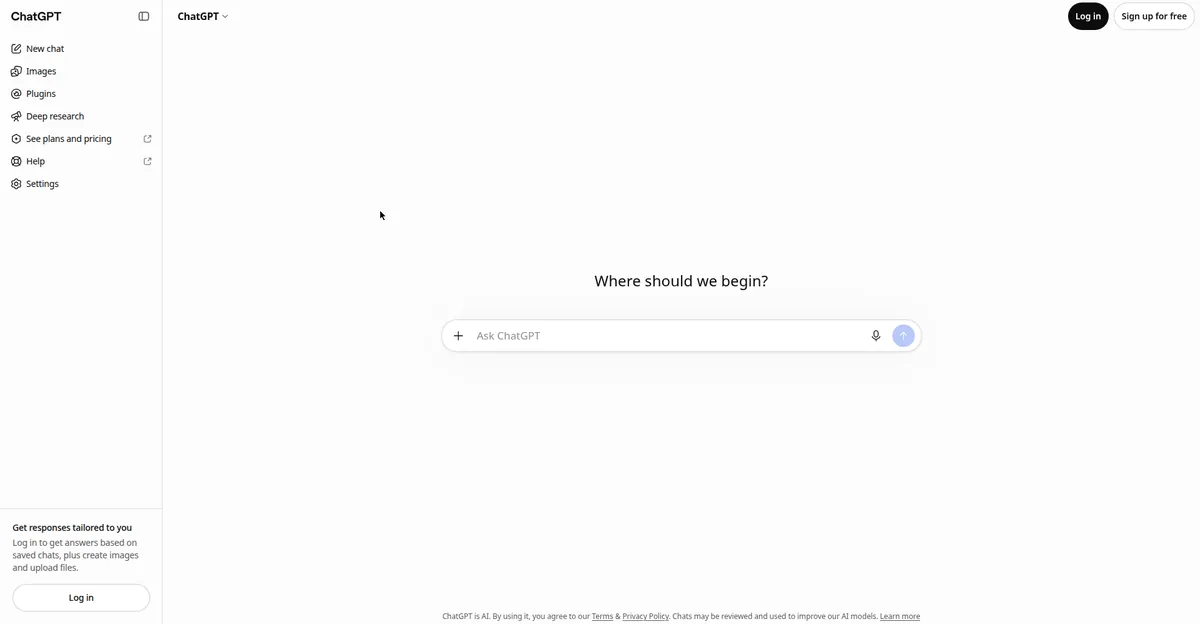
ChatGPT — the default workhorse
The most versatile free option for YouTube scripts with AI: strong at hooks, outlines, and tone rewrites. Keep one running chat per video so it remembers your topic, audience, and style across all seven steps. The free tier covers this whole workflow; Plus is $20/mo if you hit the free limits. New to AI writing? Start with our free AI writing tools roundup.
Claude — the best long-form drafter
Claude handles long context gracefully — useful when your outline plus research notes get big. Its drafts tend to sound more natural on first pass, so there’s less to fix in step 7. The free tier covers several scripts a week; Pro is $20/mo, or $17/mo billed annually ($200 a year).

Gemini — the free Google option
Gemini is Google’s own assistant, and its free tier works with any Google account — no separate sign-up beyond the one you already have. It is strong at research-heavy scripts because it can pull in fresh web information, and it sits naturally next to Docs and YouTube if your workflow already lives in Google’s apps. Google AI Pro is $19.99/mo if you want the higher limits and the top model.

YouTube Ask Studio — ideas from your own channel
Ask Studio is YouTube’s own AI assistant, built into YouTube Studio. YouTube describes it as “an AI creative partner built directly into YouTube Studio to help you brainstorm video ideas, get channel insights, and analyze your performance.” Ask it what your audience keeps asking for, which of your videos hold viewers longest, or for outline ideas on your next topic — it answers from your own channel’s data, which no outside tool can see.
Two limits to know. Ask Studio is desktop-only — it appears as an icon in the top right of YouTube Studio in a web browser, not in the mobile app — and it cannot see competitor channels, so pair it with vidIQ for the outside view. Your chats auto-delete after 30 days, so save anything you want to keep. YouTube is gradually retiring the older Inspiration tab (from August 2026) and points creators to Ask Studio instead.

Notion AI — scripts where your channel lives
If you plan content in Notion, Notion AI drafts scripts inside the same pages as your content calendar and research. Less tab-switching; outlines, scripts, and publishing checklists stay together.
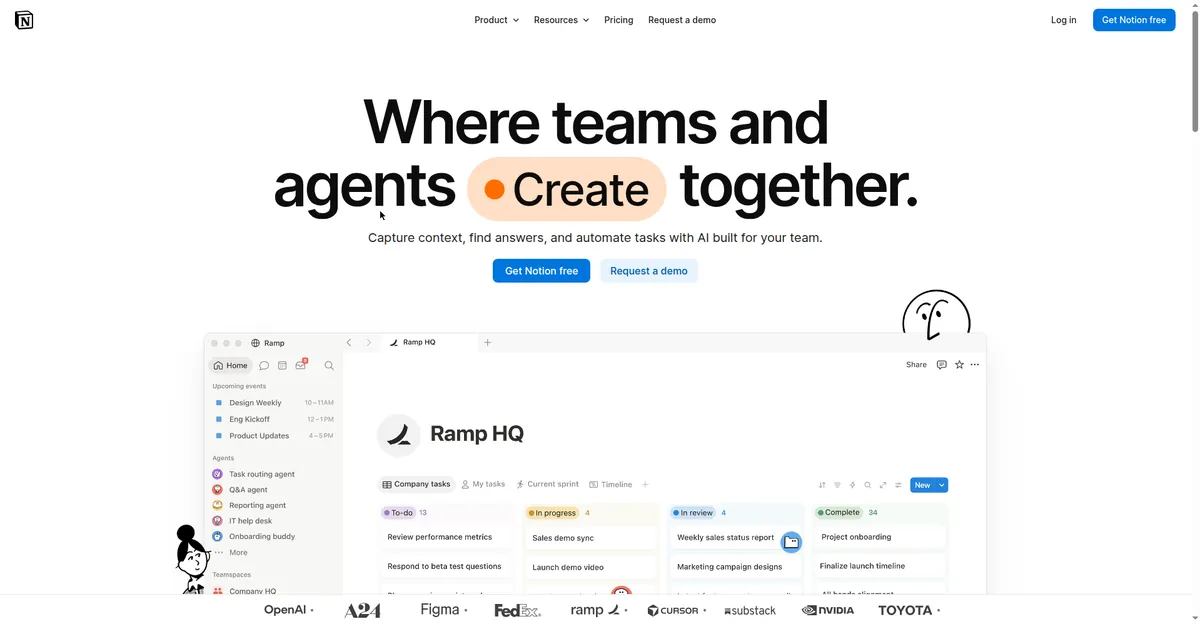
One correction to older advice: Notion AI is not a free tool. The standalone AI add-on was retired in May 2025, and full AI is now bundled into the Business plan at $20/member/mo billed annually ($24 billed monthly). Free and Plus workspaces get only a limited trial of Notion AI. If you already pay for Business, it costs nothing extra; if you don’t, don’t buy Business just for scripting — the free tiers above do the same job at $0.
vidIQ — idea and title research
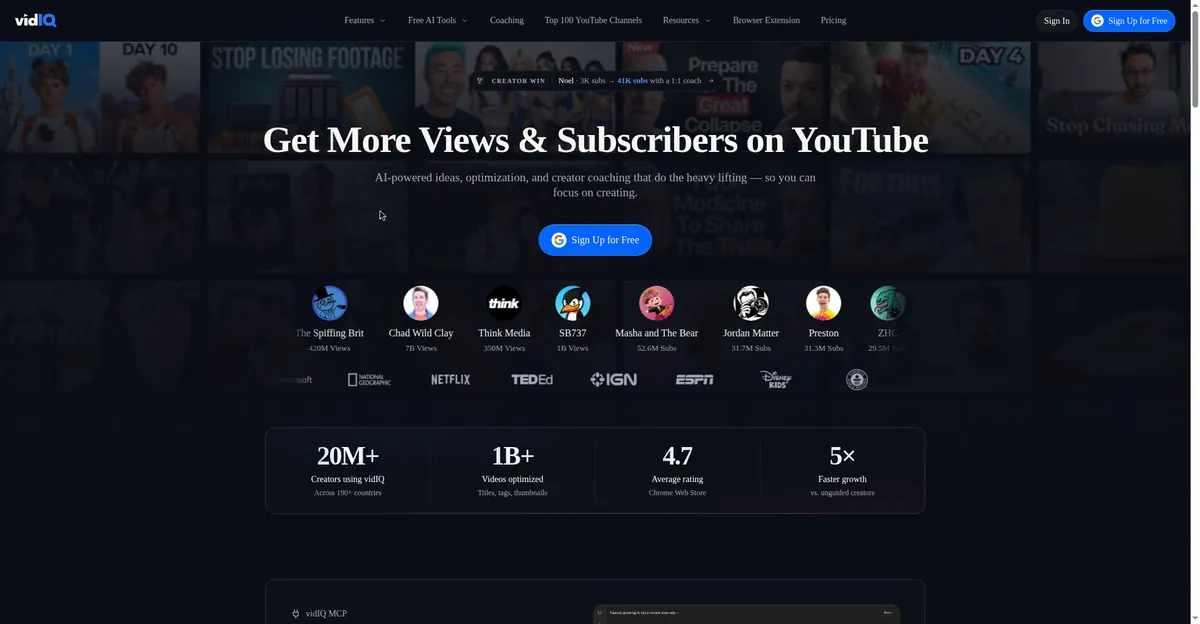
VidIQ isn’t a scriptwriter — it’s the research half. It shows trending titles and topics in your niche, which feeds step 2 directly. Validate the idea before spending an hour scripting it. The free plan costs $0 and includes 150 AI credits a month, with keyword research capped at 3 results per search; Boost is $19/mo if you need the caps lifted.
How Should a YouTube Script Be Structured?
A YouTube script should run in five parts, in order: hook, setup, value, payoff, and call to action. The hook earns the first seconds, the value delivers the promise, and the payoff closes the loop the hook opened.
- Hook (first 15 seconds). State the problem or result in one or two lines — no greeting, no channel intro.
- Setup (next 15–30 seconds). Say who the video is for and what viewers will be able to do by the end.
- Value (the main body). Deliver three to five points in order, with an example or visual cue for each.
- Payoff (near the end). Answer the question the hook opened and recap the points in two sentences.
- Call to action (final line). Ask for one thing only, such as trying the workflow on your next video.
Here is a worked example — the opening of a script for “5 Free AI Tools for Students”:
[HOOK] "Your notes app is not the problem — your study system is, and five free AI tools can fix it this week."
[SETUP] "I tested each tool on real coursework, and by the end you will know which one fits notes, revision, and planning."
[VALUE] "Tool one turns lecture slides into a practice quiz, so you revise what you were actually taught…"
There is no channel intro and no subscription ask in that opening, and that is deliberate. When you draft YouTube scripts with AI, ask the tool to label the five parts like this, and the draft is much easier to check and cut before filming. The tools in the example are the same ones in our best AI tools for students roundup.
3 Copy-Paste Prompt Templates
Prompts that work for YouTube scripts with AI state the audience, the length, the tone, and the structure you want. The three templates below cover the hook, the section draft, and the retention edit. Our free AI Prompt Generator tool builds the same kind of briefs if you want a starting point without writing one from scratch.
Template 1 — Hook generator:
Write 5 YouTube hooks (under 25 words each) for a video titled "[title]"
for [audience]. Styles: one question hook, one bold claim, one story
tease, one "mistake to avoid" hook, one curiosity gap. No greetings.
Template 2 — Section drafter:
Using this outline section — [paste one section] — write the spoken
script, about [word count] words. Conversational, like explaining to a
smart friend. Include one concrete example or number. End with a one-line
bridge into [next topic].
Template 3 — Retention pass:
Here is my finished YouTube script: [paste script]. Act as a ruthless
editor. Flag: 1) sentences a viewer would skip, 2) repeated points,
3) spots needing a re-hook or pattern interrupt. Suggest specific cuts.
5 Mistakes That Kill Retention (Even with AI Help)
The retention mistakes that hurt YouTube scripts with AI most are opening with your channel intro, publishing the AI’s first draft untouched, and leaving long stretches with no visual change. Each gives viewers a reason to leave at the moment the video should hold them.
- Opening with your channel intro. “Hey guys, welcome back” loses new viewers instantly. Hook first, and introduce yourself after earning 30 seconds.
- Publishing the AI’s first draft. AI writes competent, forgettable scripts. Your stories and specifics are the only parts viewers remember — add them deliberately.
- No pattern interrupts. Even great words get boring. Plan a visual change, example, or question every 30–60 seconds.
- Five calls to action. “Like, subscribe, comment, share” means the viewer does nothing. One CTA per video.
- Skipping the read-aloud test. Written English and spoken English are different languages. If you don’t read it aloud, viewers hear every awkward sentence.
For faceless channels, narration matters as much as the script — our AI text-to-speech guide covers turning a finished script into natural voiceover.
Do You Need to Disclose AI-Written Scripts on YouTube?
No. YouTube’s own help page lists “using generative AI tools to create or improve a video outline, script, thumbnail, title, or infographic” among the things creators do not need to disclose. A script drafted with AI and performed by you needs no label.
Disclosure is for realistic altered or synthetic content. YouTube requires it when a video makes a real person appear to say or do something they didn’t, alters footage of a real event or place, generates a realistic scene that never happened, or uses AI music as the main focus of the video. A fully AI-voiced video with a realistic synthetic voice is different from a script — check YouTube’s GenAI disclosure page before you publish anything in that grey area.
When disclosure is required, you set it in YouTube Studio during upload: Attributes → “AI use” → Yes. YouTube adds the label to the video. Its own note on the same page: “Disclosing AI content won’t limit a video’s audience or impact its eligibility to earn money.” Policies change, so read YouTube’s GenAI disclosure page for the current list before you rely on this section.
Frequently Asked Questions About YouTube Scripts with AI
Can I use AI to write my entire YouTube script?
You can, but don’t publish it untouched. AI gives structure and speed; the parts that make viewers stay — your examples, opinions, stories — come from you. Treat YouTube scripts with AI as a 70% draft you finish, not a finished product.
Do I need to disclose AI writing assistance?
No. YouTube’s help page lists using generative AI “to create or improve a video outline, script, thumbnail, title, or infographic” among the things creators don’t need to disclose. Disclosure is for realistic altered or synthetic content, such as a real person shown saying something they never said. A script drafted with AI and performed by you needs no label.
How long should a YouTube script be?
Plan 130–150 words per minute. A 5-minute video needs roughly 650–750 words; a 10-minute one needs 1,300–1,500. Beginners should start with 5–8 minute scripts — shorter is easier to keep tight.
What’s the best free AI tool for YouTube scripts?
ChatGPT’s free tier handles this whole workflow, Claude’s free tier is arguably better for long-form drafting, and Gemini’s free tier works with any Google account. YouTube’s own Ask Studio is free inside YouTube Studio for ideas and outlines. Either assistant is enough to make YouTube scripts with AI at a professional level without spending anything. Notion AI is not a free option — full access needs the Business plan.
Will AI-written scripts hurt my channel’s growth?
No — viewers judge the video, not the writing process. What hurts growth is generic, low-effort content, whoever wrote it. A well-edited AI-assisted script with real insight beats a lazy human-written one every time.
Can AI write scripts for YouTube Shorts?
Yes. Keep it to one idea, one hook line, and roughly 130–150 spoken words for a 60-second Short, and cut any setup that does not serve that single point.
Conclusion
If you are starting out, pick one free tool — ChatGPT for all-round work, Claude for long drafts, Gemini if you live in Google’s apps — and run the seven steps on your next video. Hook first, outline before drafting, generate section by section, mark your visuals, then read aloud and cut hard.
Do that consistently, and scripts stop being the bottleneck. That is how to make YouTube scripts with AI without spending anything: one free tool, seven steps, and your own stories in every draft. The camera you already own is enough; the script is the upgrade. If you are new to AI tools in general, our AI tools for beginners roundup covers the gentlest starting points first.
Last checked: 13 November 2026 | Prices checked: 13 November 2026 on each vendor’s official pricing page (see Sources). Prices and YouTube’s policies change — confirm on the official sites before you rely on them.
Sources
- YouTube Help, “Disclosing use of GenAI content” — support.google.com/youtube/answer/14328491 (checked 13 November 2026)
- YouTube Help, “Explore Inspiration tab on YouTube” (Ask Studio) — support.google.com/youtube/answer/15575509 (checked 13 November 2026)
- ChatGPT pricing — chatgpt.com/pricing (checked 13 November 2026)
- Claude pricing — claude.com/pricing (checked 13 November 2026)
- Gemini subscriptions — gemini.google/subscriptions (checked 13 November 2026)
- Notion pricing — notion.com/pricing (checked 13 November 2026)
- vidIQ pricing — vidiq.com/pricing/ (checked 13 November 2026)
- YouTube Creator Academy — creatoracademy.youtube.com (checked 13 November 2026); scripting lesson video “Convert Your Story Idea Into a Script (ft. Anna Akana)” — youtube.com/watch?v=fxYhxBXtgvE (verified 13 November 2026)
- AI Note Taker: 7 Best Free Tools for Notes & Summaries (2026)
- AI Book Generator: 7 Best Free Tools to Write a Full Book (2026)
- AI Prompt Generator: 7 Best Free Tools That Work (2026)
- How to Remove Background from Video Free: AI Tools That Do It in Seconds (2026)
- Tip Calculator Guide: How to Calculate a Tip and Split Bills




[…] stock photos; YouTube thumbnails with bold compositions that read at small sizes (our guide to making YouTube scripts with AI pairs well here); product mockups for online sellers, cleaned up with a free AI background remover; […]
[…] as inauthentic, and synthetic media must be labeled. This is a 6–12 month play. Our tutorial on making YouTube scripts with AI covers the retention structure that actually […]